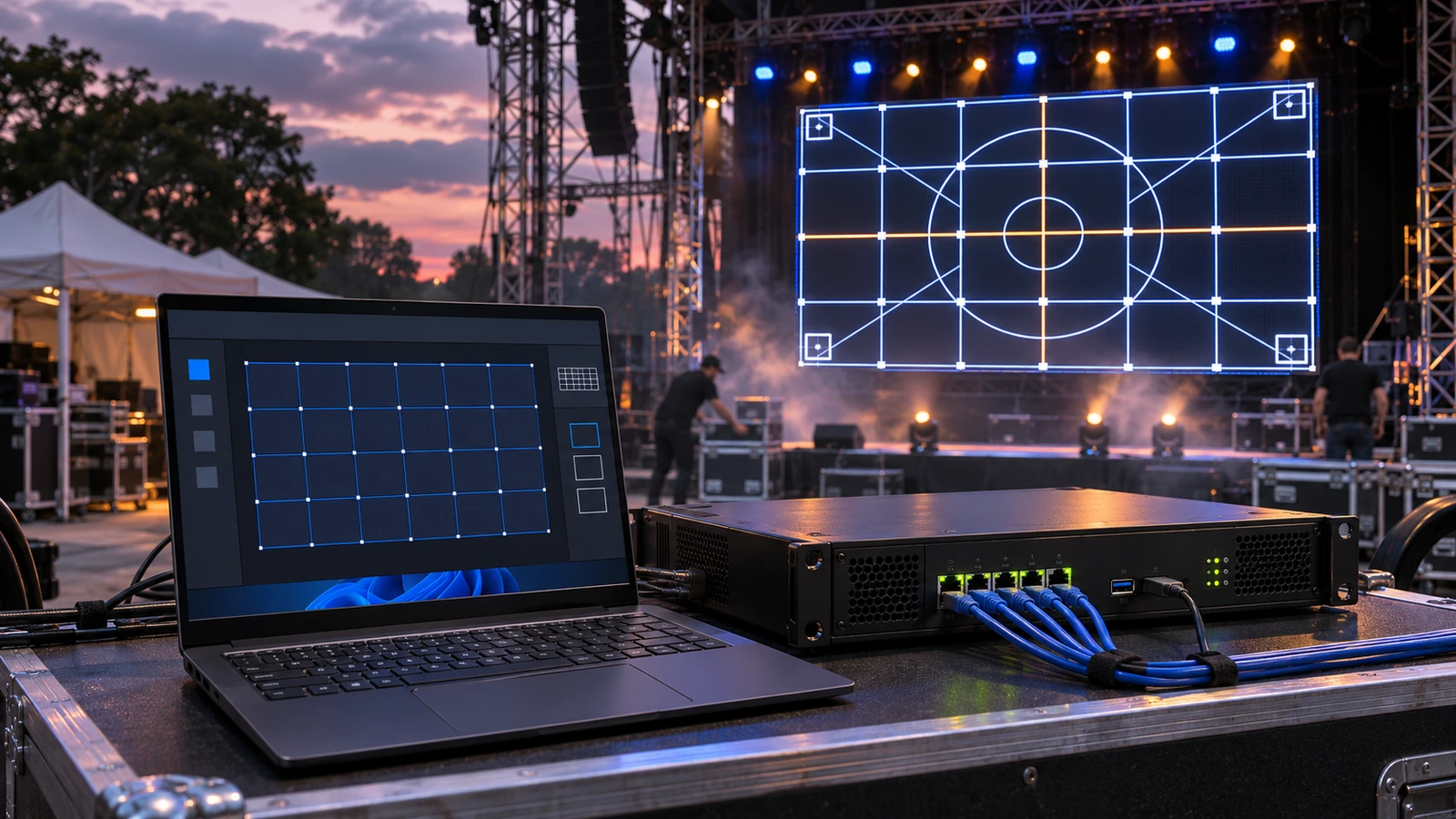
NovaLCT (often written Nova LCT) is NovaStar’s official Windows-based LED screen configuration software for setting up, mapping, calibrating, and troubleshooting synchronous and asynchronous LED displays. To configure a rental wall cleanly in NovaStar NovaLCT, download the latest release directly from NovaStar, run it as Administrator on Windows 10/11, log into Advanced Synchronous System User Login (admin or 666 depending on version), load or read a verified .rcfgx file, map cabinets within each Ethernet port’s pixel limit, and click Save to Hardware so the settings survive a power cycle.
If you manage rental LED walls—especially workhorse outdoor stages built from 500 × 1000 mm P3.91 cabinets—most show-day emergencies do not happen because an LED panel failed. They happen inside NovaLCT software: forgetting to save to hardware flash before a generator switch, accidentally pushing 20 P3.91 cabinets onto a single Gigabit Ethernet port, blasting a mismatched .rcfgx file across mixed-batch cabinets, or hitting a Windows 11 USB driver wall ten minutes before doors open.
This guide gives video engineers, rental technicians, and AV buyers a field-tested NovaLCT workflow built around real P3.91 cabinet math (128 × 256 px per 500 × 1000 mm cabinet), CMS130 / CMS260 / NovaStar VX1000 port limits, an interactive RJ45 snake-mapping validator, and solutions to the exact errors crews hit on site.
1. NovaLCT Download, Windows 11 Setup & Verified Default Passwords
Start by pulling your NovaLCT download exclusively from the official NovaStar Download Center rather than random third-party mirror links. Current production builds are in the NovaLCT V5.9.x series (replacing older V5.4–V5.7 builds and legacy NovaLCT-Mars / Pluto packages). Keeping one tested, stable installer on an offline USB drive in your FOH workbox prevents venue Wi-Fi bottlenecks during load-in.
Installing NovaLCT on Windows 11 Without Driver Failures
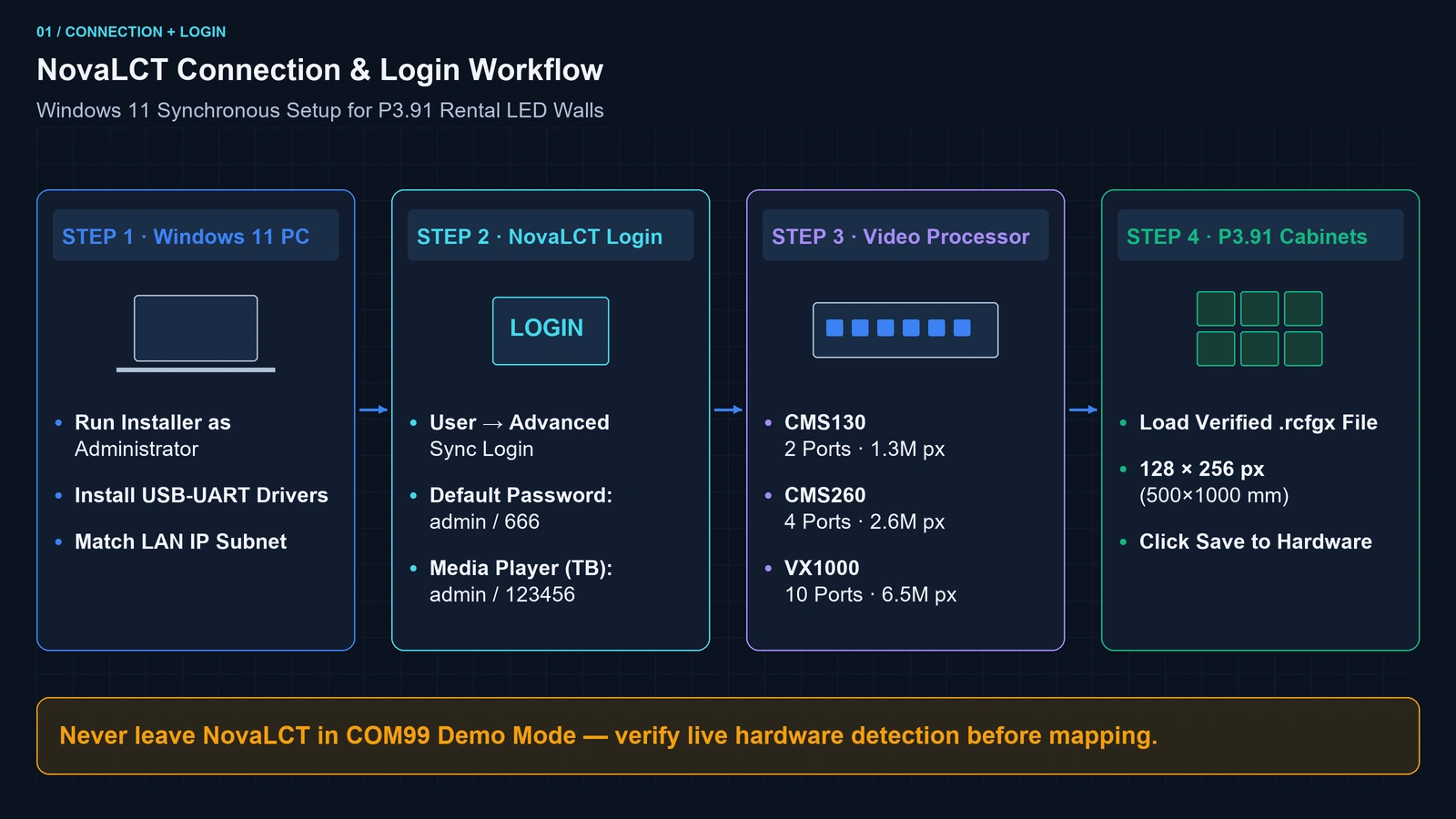
Many technicians search NovaLCT Windows 11 right after a fresh laptop refuses to detect a sending box. Windows 11 enforces stricter driver-signing and background-service permissions than Windows 10. Follow these four installation rules every time:
- Right-click → Run as administrator: Never double-click the installer as a standard user. Elevated permissions are required for the bundled USB-to-UART / Cypress serial drivers and the background
NovaServicecommunication daemon. - Approve every bundled driver prompt: When the installer launches secondary driver windows midway through setup, click through and accept all of them. Skipping a single UART driver causes the classic “no hardware detected” lockout.
- Temporarily pause aggressive antivirus hooks: Endpoint security tools occasionally quarantine
NovaServiceor block local loopback ports used between NovaLCT and the communication server. - Match LAN subnets for Ethernet control: When controlling a
NovaStar VX1000or asynchronous Taurus player over Ethernet instead of USB, set your Windows 11 laptop Ethernet adapter to a static IP on the same subnet as the controller (for example,192.168.0.50when the controller sits on192.168.0.10), and disable Wi-Fi temporarily so Windows does not route packets out the wrong NIC.
NovaLCT Login Modes & Default Passwords
When you first open Nova LCT, the top menu looks stripped down—Screen Configuration, Calibration, and receiving-card tools are hidden until you authenticate. Technicians routinely confuse synchronous processor logins with asynchronous media-player logins, so keep this reference table on hand:
| Login Path in NovaLCT | Hardware Type | Verified Default Credentials | What It Unlocks |
|---|---|---|---|
| User → Advanced Synchronous System User Login | Synchronous controllers (CMS130, V760, CMS260, NovaStar VX1000, VX400, VX600, MCTRL series) | Password: admin (some older or specific builds use 666 or 666666 for advanced debugging) | Screen Configuration, .rcfgx Read/Send, Enable Mapping, Save to Hardware, receiving card firmware, calibration |
| User → Media Player Login | Asynchronous/Sync Taurus players (TB40, TB50, TB60, plus legacy TB1–TB8) | Username: admin / Password: 123456 (some firmware builds use 12345678) | Terminal discovery (Refresh → Connect System), asynchronous playback screen config, brightness schedules |
| Demonstration Login (Unauthenticated / COM99) | Offline simulation (no live hardware) | Password: admin (select Demo Mode) | Offline pre-programming of cabinet grids and pixel layouts before arriving at the venue |
Field tip on NovaLCT default password & NovaLCT media player login password: If you are staring at a screen that only shows cloud options or COM99 with no Screen Configuration icon, you are not logged into Advanced Synchronous System User Login. Log out of Demo Mode, verify the USB or LAN link is detected, and log in with admin (or 666 on legacy builds). For Taurus players, the NovaLCT media player login password is 123456 (or 12345678 on newer firmware)—not admin.
2. The P3.91 Port-Loading Rule: Why 20 Cabinets Overload One Ethernet Port
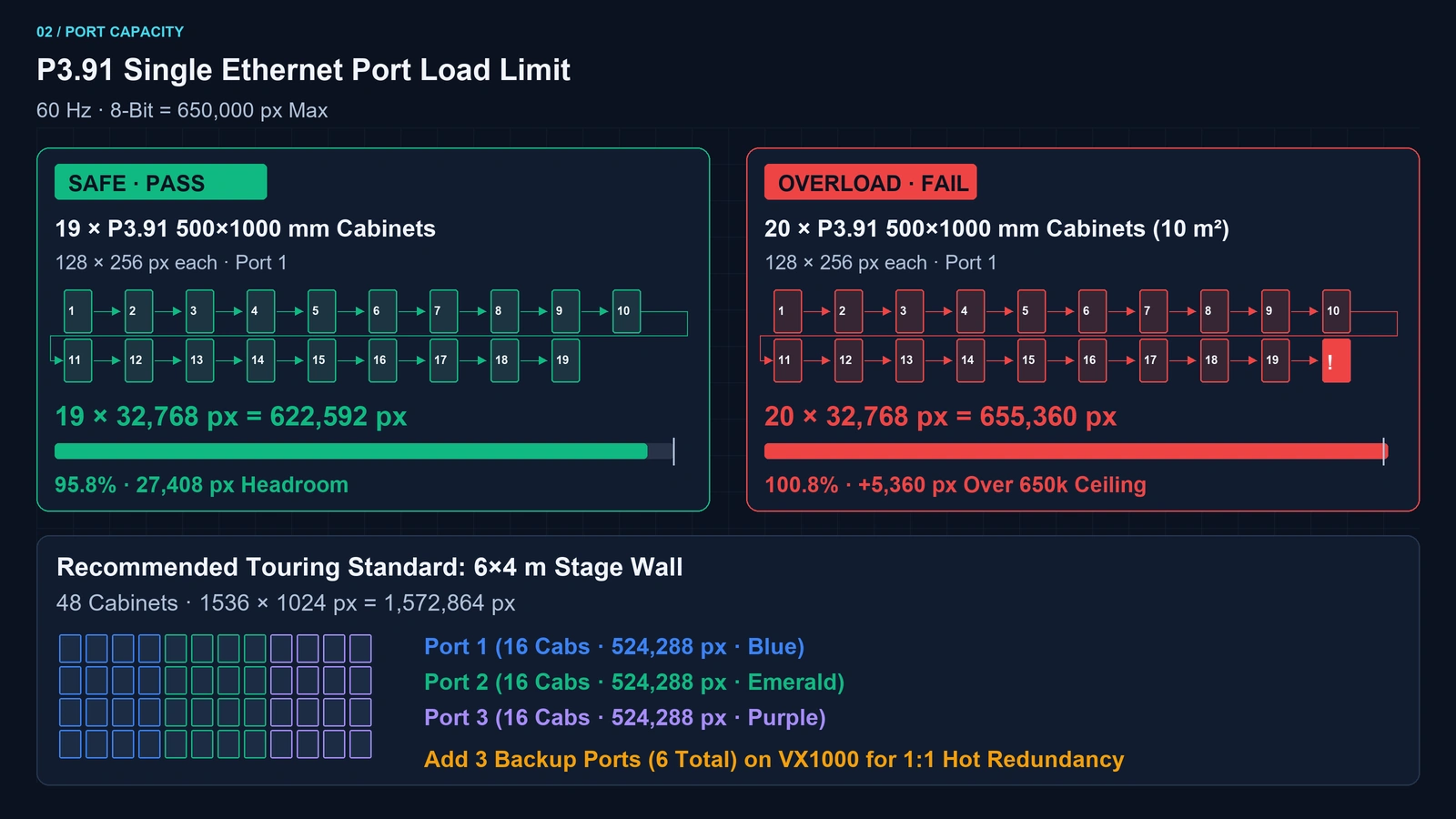
A single Gigabit Ethernet output on a standard NovaStar controller (CMS130, CMS260, or NovaStar VX1000) supports up to 650,000 pixels at 60 Hz / 8-bit (or roughly 325,000 pixels at 10-bit / HDR). Because one vertical 500 × 1000 mm P3.91 rental cabinet contains 128 × 256 = 32,768 pixels, one Ethernet port can safely drive a maximum of 19 vertical 500 × 1000 mm cabinets (622,592 pixels). Adding a 20th cabinet pushes that port to 655,360 pixels—5,360 pixels over the 650,000-pixel ceiling—which triggers a port-overload error, dropped frames, or a locked port inside NovaLCT.
This single arithmetic trap catches more rental crews on P3.91 builds than almost any other error. At 65,536 pixels/m², ten square meters sounds like an easy round number (10 m² = 20 cabinets of 500 × 1000 mm), so crews run one CAT6 line across 20 tiles and wonder why NovaLCT refuses to push the map. Keep every P3.91 500 × 1000 mm port run at 16 to 18 cabinets in normal touring practice (leaving clean rectangular blocks such as 4 × 4 = 16 cabinets = 524,288 pixels) and never exceed 19 cabinets on an 8-bit 60 Hz port.
Verified P3.91 Capacity Across Common NovaStar Controllers & Taurus Boxes
Before opening the NovaLCT mapping tab, verify that your hardware controller has enough total capacity, width/height ceiling, and free ports—especially if the show requires 1:1 Ethernet port hot-backup. (For full pre-purchase controller selection rules, see our LED video wall controller selection guide.)
| Controller Model | Total Loading Capacity | Gigabit Ethernet Outputs | Max Width / Height Ceiling | Max P3.91 500×1000 Cabinets (Primary Only, ≤19/port) | Max P3.91 500×1000 Cabinets (With 1:1 Port Hot Backup) | Typical Rental Role |
|---|---|---|---|---|---|---|
| NovaStar CMS130 / V760 | 1.3 Million px | 2 ports | Scaled within 1.3M px | Up to 38 cabinets (19 m²) | Up to 19 cabinets (9.5 m²) | Entry-level clubs, DJ backdrops, small corporate booths (4×2m to 5×3m) |
| NovaStar CMS260 | 2.6 Million px | 4 ports | Max 3,840 px W or H | Up to 76 cabinets (38 m²) | Up to 38 cabinets (19 m²) | Mid-size stages, churches, 6×4m (48-cab) single-path walls |
| NovaStar VX1000 | 6.5 Million px | 10 ports (+ 2×10G fiber) | Max 10,240 px W / 8,192 px H | Up to 190 cabinets (95 m²) | Up to 95 cabinets (47.5 m²) | Large festivals, 6×4m or 8×4m walls with full 1:1 port redundancy & fiber runs |
| NovaStar TB40 / TB50 | 1.3 Million px | 2 ports | Max 4,096 px W or H | Up to 38 cabinets (19 m²) | Up to 19 cabinets (9.5 m²) | Standalone commercial signage, posters & fixed retail walls (async USB/Wi-Fi/cloud via ViPlex Express + HDMI sync; configured in NovaLCT Media Player Login) |
| NovaStar TB60 | 2.3 Million px | 4 ports | Max 4,096 px W or H | Up to 70 cabinets (35 m²) | Up to 35 cabinets (17.5 m²) | Mid-size standalone commercial LED walls needing 4-port capacity or 2+2 backup without a dedicated playback PC |
Note: Processor specs above reflect standard 8-bit 60 Hz published limits (e.g., NovaStar VX1000 Specifications V1.4.0). Running 10-bit color, higher frame rates, or non-rectangular custom shapes lowers usable per-port cabinet counts and must be verified against the exact order’s receiving cards and firmware.
Worked P3.91 Stage Wall Reference Table (500 × 1000 mm, 128 × 256 px, 12.5 kg)
| Stage Wall Size | Cabinet Grid (Cols × Rows) | Total Cabinets | Native Resolution | Total Pixels | Active Ports (8-bit, ≤19/port) | Ports Needed for 1:1 Hot Backup | Default Flight Cases (6/case) | Net Screen Weight |
|---|---|---|---|---|---|---|---|---|
| 4 × 2 m | 8 × 2 | 16 | 1024 × 512 | 524,288 | 1 (or 2 balanced) | 2 (CMS130 OK) | 3 cases (2 spare slots) | 200 kg (441 lbs) |
| 6 × 4 m | 12 × 4 | 48 | 1536 × 1024 | 1,572,864 | 3 (16 cabs/port) | 6 (needs VX1000) | 8 cases | 600 kg (1,323 lbs) |
| 8 × 4 m | 16 × 4 | 64 | 2048 × 1024 | 2,097,152 | 4 (16 cabs/port) | 8 (needs VX1000) | 11 cases | 800 kg (1,764 lbs) |
| 10 × 5 m | 20 × 5 | 100 | 2560 × 1280 | 3,276,800 | 6 (~16–18 cabs/port) | 12 (needs dual unit / higher tier) | 17 cases | 1,250 kg (2,756 lbs) |
3. Interactive Tool: NovaLCT P3.91 Port-Loading Validator & Pixel Map Generator
Use this interactive calculator before wiring your truss or opening NovaLCT screen configuration. Choose your P3.91 cabinet size, wall grid, processor, color depth, and redundancy mode to verify whether every Ethernet port stays safely below the 650k / 325k pixel ceiling, preview the exact P#:Cab# snake routing layout, download an exact-resolution LED wall pixel map PNG test pattern for Resolume/media servers, or copy the matched configuration directly for a quote.
NovaLCT P3.91 Port-Loading Validator & Pixel Map Generator
Verify 650k-pixel port ceilings, preview Enable Mapping IDs, download an exact-resolution Pixel Map PNG test image, or copy specs for a quote.
Front-View RJ45 Snake Map (Vertical Column Snake): Each tile displays Port# - Order# matching NovaLCT Enable Mapping.
| Primary Port | Backup Port | Assigned Cabinets | Port Pixel Load | % of Port Ceiling | Status |
|---|
4. Step-by-Step NovaLCT Screen Configuration & Mapping Workflow
Once your hardware is detected and you are logged into Advanced Synchronous System User Login, open Screen Configuration → Next and work strictly in this five-step sequence.
Step 1: Sending Card Tab (Match Source Resolution & Frame Rate)
Confirm the sending card's Source Resolution and Refresh Rate (usually 1920 × 1080 @ 60 Hz or 3840 × 2160 @ 60 Hz) match your media server or switcher output. Never assume a controller automatically matches an odd custom EDID; verify the active green input lock indicator before touching receiving-card settings.
Step 2: Receiving Card Tab (Never Blind-Blast a Random .rcfgx File)
Every LED cabinet batch uses a specific LED driver IC, scan ratio (1/28 scan on WUYESTAGE outdoor P3.91), and hub-board pinout defined inside its .rcfgx configuration file.
- If all cabinets are from one factory batch: Click Load from File, select the factory-supplied
.rcfgxfile for that exact order, verify cabinet pixel dimensions (128 × 256for vertical500 × 1000 mmP3.91), and click Send to Receiving Card → Save. - If you lost the .rcfgx file on site: Do not download a random P3.91
.rcfgfile from the internet—the wrong scan/data-group file can turn a working wall into digital snow. Instead, connect one known-good cabinet, click Read from Receiving Card, inspect the dimensions, save a local backup copy to your laptop, and send it only to replacement cards from the same hardware batch. - Mixed-batch rental walls: Never click "All Receiving Cards" when mixing two production batches in one wall. Address each batch by specific port and card coordinates so you do not overwrite a newer IC revision with an older batch file.
Step 3: Screen Connection Tab & Enable Mapping
Switch to Screen Connection, click Configure, enter your exact Columns and Rows, and verify each cabinet's pixel width and height (128 × 256 for vertical 500 × 1000 mm).
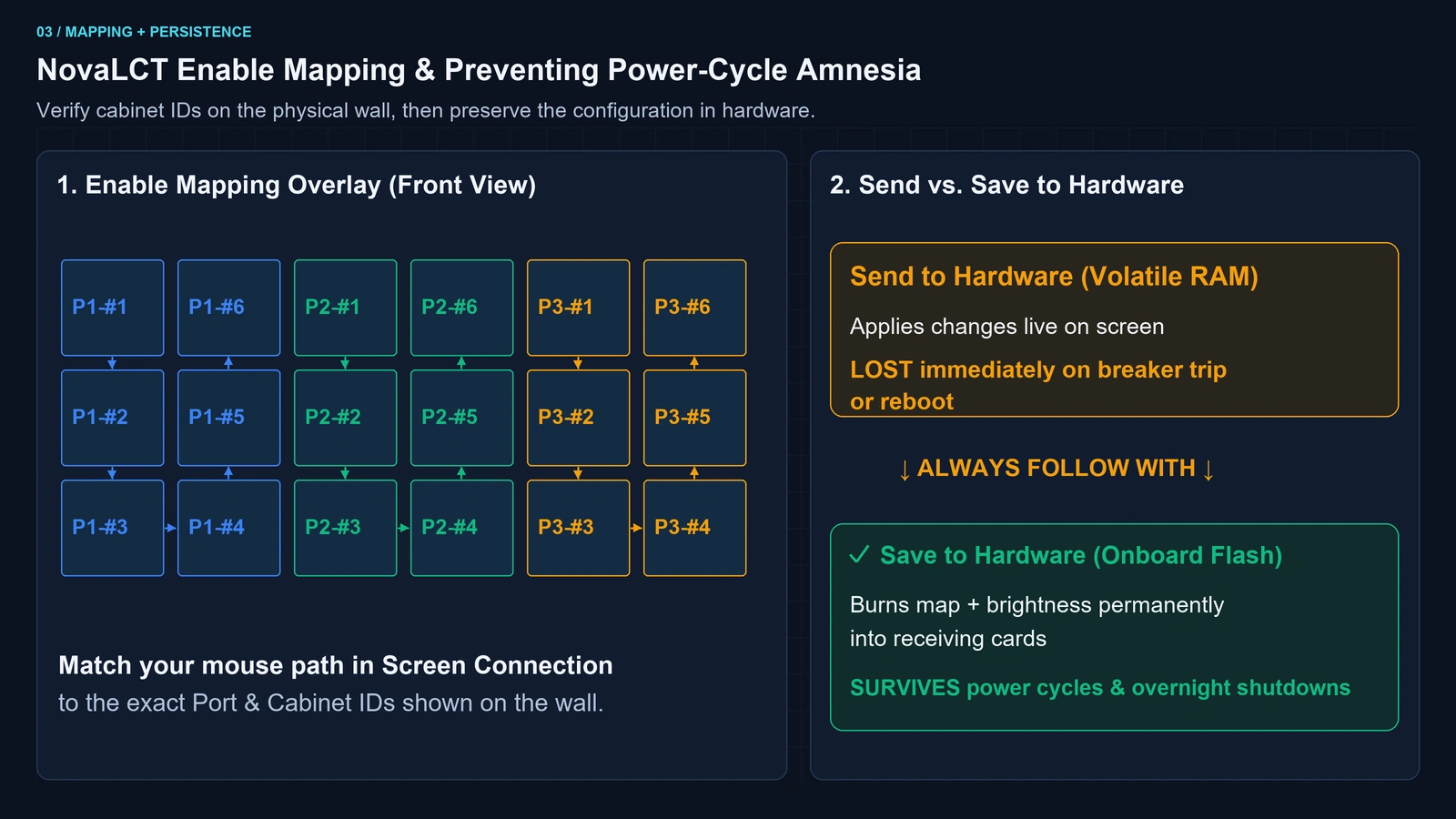
Now turn on Enable Mapping in the lower-left area of the Screen Connection screen. Every connected cabinet immediately flashes a clear overlay showing its exact Ethernet Port (P1, P2, P3) and Cabinet Sequence (#1, #2, #3...) directly on the LED face. Walk in front of the wall—remember that NovaLCT mapping defaults to Front View—and trace your virtual mouse path to match the physical CAT6 snake order cabinet by cabinet. Turn Enable Mapping off once every tile aligns cleanly.
Step 4: Send to Hardware vs. Save to Hardware (Preventing "Power-Cycle Amnesia")
If your LED video wall looks perfect during soundcheck but resets to scrambled tiles, dim brightness, or blank sections after a power cycle, you clicked Send to Hardware without clicking Save to Hardware. Send to Hardware only writes the map into temporary volatile memory (RAM) inside the sending and receiving cards; Save to Hardware burns the topology permanently into onboard flash memory so the wall boots straight back to your show map after any breaker trip or overnight shutdown.
Always execute the three-click lock at the end of every change:
- Click Send to Hardware (verify visually on the wall).
- Click Save inside the Screen Connection tab (writes the cabinet topology to flash).
- If you adjusted brightness, gamma, or calibration coefficients, click Save to Hardware inside the Brightness / Calibration panel as well.
Step 5: Configure 1:1 Port Redundancy (When Required)
On NovaStar VX1000 or CMS260 shows running backup cables, go to the Redundancy sub-tab inside Screen Configuration, pair each Primary Port (Port 1 → Port 4, Port 2 → Port 5, Port 3 → Port 6), click Add, and physically unplug one primary CAT6 cable at the rack during rehearsal to confirm seamless instant failover before the audience enters.
5. Field Troubleshooting: Fixing the 6 Most Common NovaLCT Faults
When something breaks ten minutes before doors, do not guess. Use this fault matrix to isolate software, driver, cable, and receiving-card errors in order.
| Symptom / Error Message | Most Likely Root Cause | First 3 Actions to Fix It |
|---|---|---|
NovaLCT not detecting hardware (or stuck on COM99 Demo Mode) | Missing USB-UART driver on Windows 11, crashed NovaService, wrong LAN subnet, or bad USB-B cable | 1) Check Windows Device Manager → Ports (COM & LPT) for yellow warnings; 2) End NovaService in Task Manager and relaunch NovaLCT as Administrator; 3) Swap USB cable or connect via LAN on the same IP subnet |
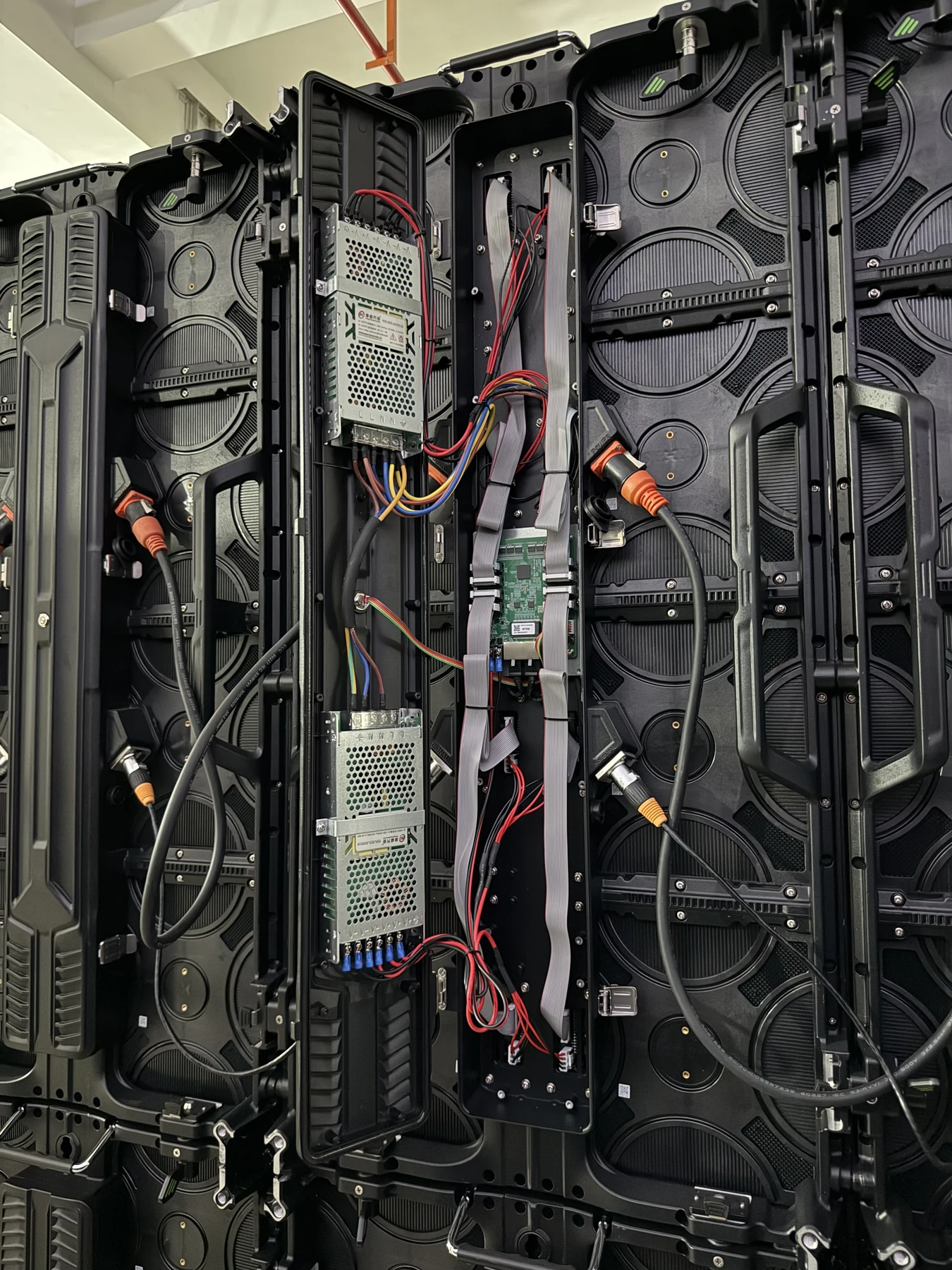
NovaLCT receiving card fault (single cabinet black, frozen, or flashing red/green) | Loose internal CAT6 jumper, bad power supply rail, corrupted card firmware/config, or dead receiving card | 1) Swap the incoming CAT6 jumper from the upstream cabinet; 2) Check the receiving card's green status LED (rapid flash = data OK, solid/off = power or link fault); 3) Run Read from Receiving Card on an adjacent healthy tile and re-send to the replacement card |
| Wall reverts or goes dim after reboot ("Power-Cycle Amnesia") | Settings were sent to RAM (Send to Hardware) but never burned to flash | Re-apply map and brightness, then click Save in Screen Connection AND Save to Hardware in Brightness |
| Brightness slider in NovaLCT does nothing or causes block artifacts | Known UI-to-hardware sync bug ("NovaLCT Wave") or mismatched old calibration coefficients | Jog brightness up 1% then back down 1% (do the same for contrast/gamma), or adjust brightness directly from the VX1000 front knob; if blocks remain, check Manage Coefficients |
| Single module or cabinet has wrong color / brightness tint | Missing factory Module Flash calibration data or leftover venue calibration coefficients | Open Calibration → Manage Coefficients; either read factory coefficients from Module Flash into the receiving card, or Erase Coefficients if old venue calibration data is corrupting a uniform batch |
| Port overload warning or dropped frames on last cabinets | Exceeded 650,000 px per Gigabit port (e.g., 20 × P3.91 500×1000 tiles = 655,360 px) or 10-bit mode enabled | Split the run to ≤19 cabinets (500×1000 P3.91 @ 8-bit), or confirm you did not accidentally enable 10-bit output on an 8-bit port budget |
Handling NovaLCT Color Calibration & Multi-Batch Rental Fleets
When a rental company expands an older P3.91 fleet with a new production batch, the two batches can show subtle white-balance or gamma differences side by side even at the exact same brightness percentage. Inside NovaLCT color calibration, start by verifying whether Chroma / Brightness Calibration is toggled identically across all receiving cards. For single spare-module swaps, use Tools → Module Flash (when supported by your module and receiving card) so the receiving card pulls the module's factory calibration table automatically. For deeper hardware-level dead-module diagnostics, walk through our LED screen problems troubleshooting guide.
6. NovaLCT for Mac, SmartLCT vs NovaLCT & the MX40 Pro (VMP) Boundary
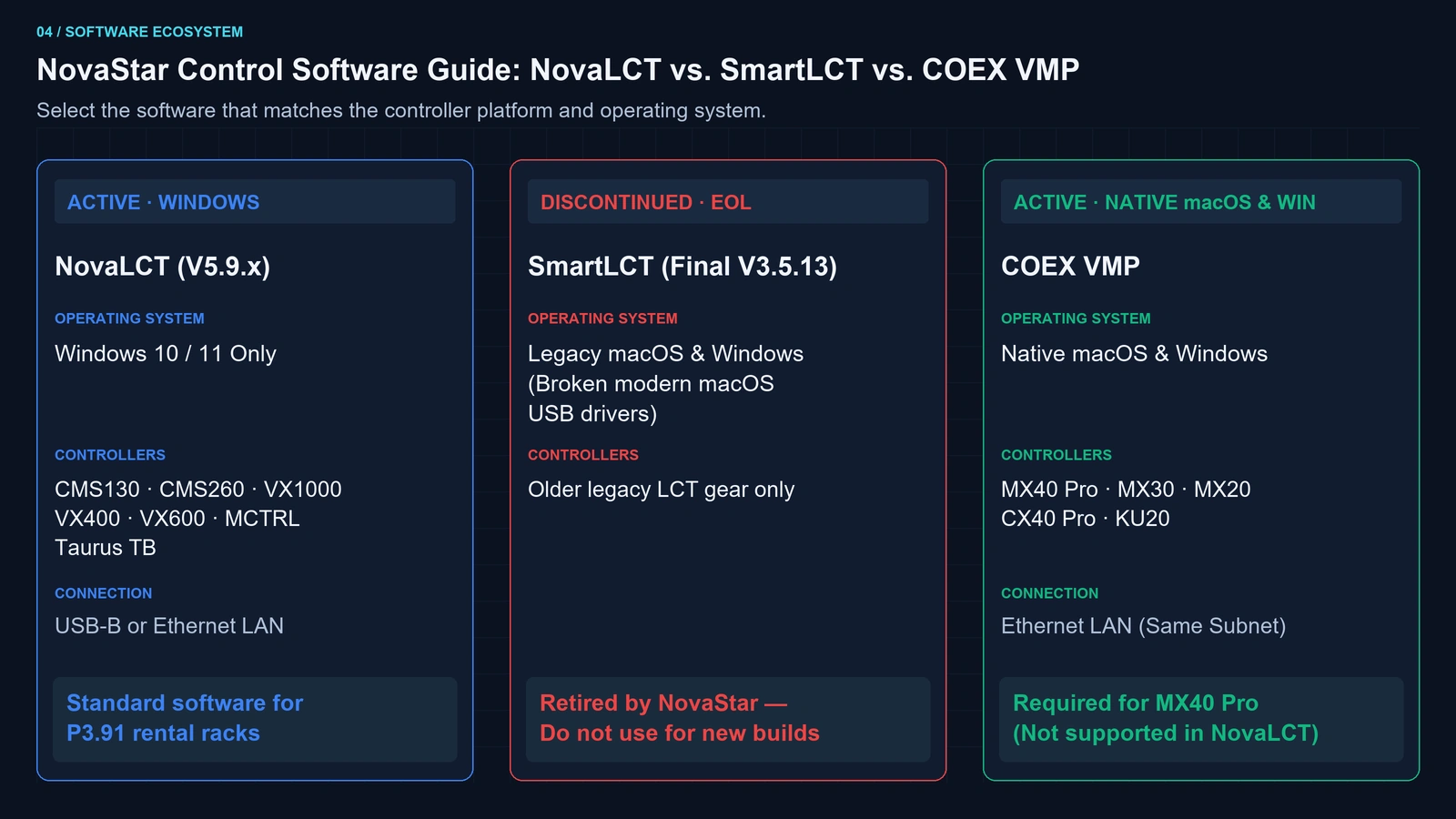
NovaLCT is Windows-only—there is no native NovaLCT for Mac installer. NovaStar's former macOS-compatible tool, SmartLCT, is officially discontinued (final release V3.5.13) and no longer recognizes newer hardware or modern macOS USB drivers. If you use NovaStar COEX controllers such as the MX40 Pro or MX30, do not use NovaLCT or SmartLCT at all—use NovaStar's official COEX VMP (Vision Management Platform), which runs natively on macOS and Windows over Ethernet LAN.
This ecosystem transition causes enormous confusion for Mac-based video directors searching NovaLCT Mac or SmartLCT vs NovaLCT. Use this three-way matrix to pick the exact software your hardware requires:
| Feature / Criteria | NovaLCT (Nova LCT) | SmartLCT (Legacy) | COEX VMP (Vision Management Platform) |
|---|---|---|---|
| Lifecycle Status | Active (V5.9.x current) | Discontinued / End of Life (stopped at V3.5.13) | Active (next-gen COEX platform) |
| Operating System | Windows 10 / 11 only | Older macOS & Windows (broken USB drivers on modern macOS) | Native macOS & Windows |
| Supported Controllers | CMS130, CMS260, VX1000, VX400, VX600, MCTRL series, Taurus TB series | Legacy LCT controllers only (no new IC/firmware support) | COEX series (MX40 Pro, MX30, MX20, CX40 Pro, KU20) |
| Primary Connection | USB-B or Ethernet LAN | USB-B | Ethernet LAN (same IP subnet) |
| Mac Technician Workaround | Use a dedicated Windows 11 field laptop (Parallels Desktop on Apple Silicon works for LAN but can cause USB-driver bridging headaches) | Do not rely on SmartLCT for new shows | Native macOS app—no Parallels or Windows VM needed |
Bottom line for touring crews: Keep one clean, dedicated Windows 11 laptop strictly for NovaLCT when running CMS130, CMS260, or VX1000 racks. Running NovaLCT inside Parallels Desktop on an M-series MacBook can work over Ethernet LAN, but USB-to-serial driver passthrough fails often enough during high-pressure load-ins that seasoned engineers keep a native Windows machine in the rack drawer.
Non-NovaStar hardware boundary (Huidu HD-A4L): If a commercial poster or small standalone LED screen uses a Huidu HD-A4L multimedia player (2 Gigabit ports, 655,360-pixel ceiling) paired with Huidu receiving cards, do not try to connect it in NovaLCT—configure it in Huidu's native HDPlayer (PC) or LedArt (mobile) software instead, and never mix Huidu and NovaStar receiving cards on the same screen.
7. Pre-Order & Pre-Show NovaLCT Readiness for P3.91 Rental Cabinets
Software setup goes smoothly when the factory hardware package arrives properly documented. Before placing an order for outdoor or indoor P3.91 rental cabinets, ask your supplier to deliver four configuration items alongside the flight cases:
- Order-matched
.rcfgxfile: Labeled with the exact cabinet model, pixel resolution (128 × 256for500 × 1000 mmor128 × 128for500 × 500 mm), receiving-card model, and batch date. - Pre-mapped controller matching your redundancy plan: Confirm whether your target stage wall fits on a CMS130 (2 ports, 1.3M px), CMS260 (4 ports, 2.6M px), or NovaStar VX1000 (10 ports, 6.5M px)—especially if you need
1:1Ethernet hot-backup for a6 × 4 m(48-cabinet) main wall—or select a NovaStar TB40 / TB50 / TB60 multimedia box for standalone commercial displays without an external playback PC. - Spare receiving cards & modules from the same batch: Pre-flashed so an emergency swap takes two minutes instead of fighting a firmware mismatch.
- Wall sizing & pixel geometry check: Cross-check cabinet counts, aspect ratios, and power budgets in advance with our LED wall calculator and P3.91 LED display guide.
Explore our verified P3.91 500×1000 Outdoor Rental LED Display (3,500–4,200 cd/m², 7680 Hz, IP65, 12.5 kg, 6 cabinets per flight case) or compare full pitch options across the Outdoor Rental LED Display Cabinet Series and Indoor Rental LED Display Cabinet Series. Send us your target wall width × height, indoor or outdoor venue, preferred cabinet format (500×1000 or 500×500), and whether you require 1:1 Ethernet port hot-backup, and our engineering team will prepare a matched P3.91 cabinet + processor quote with ready-to-load NovaLCT configuration files.
Frequently Asked Questions About NovaLCT
What is the NovaLCT default password for Advanced User Login?
For synchronous LED processors (CMS130, CMS260, VX1000, MCTRL), go to User → Advanced Synchronous System User Login and enter admin (certain older builds use 666). For asynchronous Taurus media players, open User → Media Player Login and use username admin with password 123456 (or 12345678 on newer firmware).
Why is NovaLCT not detecting my hardware on Windows 11?
Nine times out of ten, Windows 11 blocked the USB-to-UART driver during a non-administrator install or NovaService stopped running. Reinstall NovaLCT using Run as administrator, approve every driver prompt, verify the COM port in Windows Device Manager, or connect to your processor via Ethernet LAN on the same IP subnet.
How many P3.91 500×1000 cabinets can one Ethernet port run in NovaLCT?
At 60 Hz / 8-bit (650,000 pixels per Gigabit port), one port drives up to 19 vertical 500 × 1000 mm P3.91 cabinets (19 × 32,768 = 622,592 pixels). Putting 20 cabinets on one port equals 655,360 pixels and triggers a port overload. For clean rectangular wiring, most crews wire 16 cabinets per port (4 × 4 block = 524,288 pixels).
Why does my LED wall lose its NovaLCT mapping after turning power off and on?
You clicked Send to Hardware (temporary RAM) without clicking Save / Save to Hardware (permanent flash memory on the receiving cards). Re-send your mapping and brightness settings, then click Save in Screen Connection and Save to Hardware in Brightness so the settings persist across power cycles.
Can I run NovaLCT on a Mac, or should I use SmartLCT?
Neither is recommended for modern setups. NovaLCT is Windows-only, and SmartLCT is discontinued (final build V3.5.13) with broken macOS USB drivers. Use a native Windows 10/11 laptop for LCT-series controllers (CMS130, CMS260, VX1000), or use NovaStar native macOS COEX VMP software if you own an MX40 Pro or MX30.
Does the NovaStar MX40 Pro work with NovaLCT?
No. The MX40 Pro belongs to NovaStar COEX architecture and is not supported in NovaLCT. Configure the MX40 Pro over Ethernet LAN using NovaStar VMP (Vision Management Platform) on macOS or Windows.
What are the differences between NovaLCT and other LED control systems like Colorlight, Linsn, or Brompton?
Control software is locked to the receiving card brand installed inside your LED cabinets. NovaLCT (NovaStar) is the global rental and commercial standard for synchronous screen mapping, .rcfgx loading, and brightness calibration. Colorlight uses LEDVISION or iSet for Colorlight receiving cards, Linsn uses LEDStudio mainly on legacy installations, and Brompton Tessera is a premium broadcast and virtual-production XR ecosystem. Always match your control software to the physical receiving card inside your panels.
Can you use NovaStar software for remote control of LED panels, and how do you connect to a NovaStar sending card?
NovaLCT is a local Windows configuration tool that connects directly to a NovaStar sending card (such as an MCTRL300/600 or an all-in-one processor like the VX400, VX1000, CMS130, or CMS260) via USB or Ethernet COM port—make sure USB serial drivers are installed, Windows Firewall allows NovaLCT, and use demonstration login 888888 only for offline layout testing. For cloud-based remote scheduling and multi-site playback management, NovaStar provides the VNNOX Cloud platform paired with Taurus (TB-series) multimedia players.