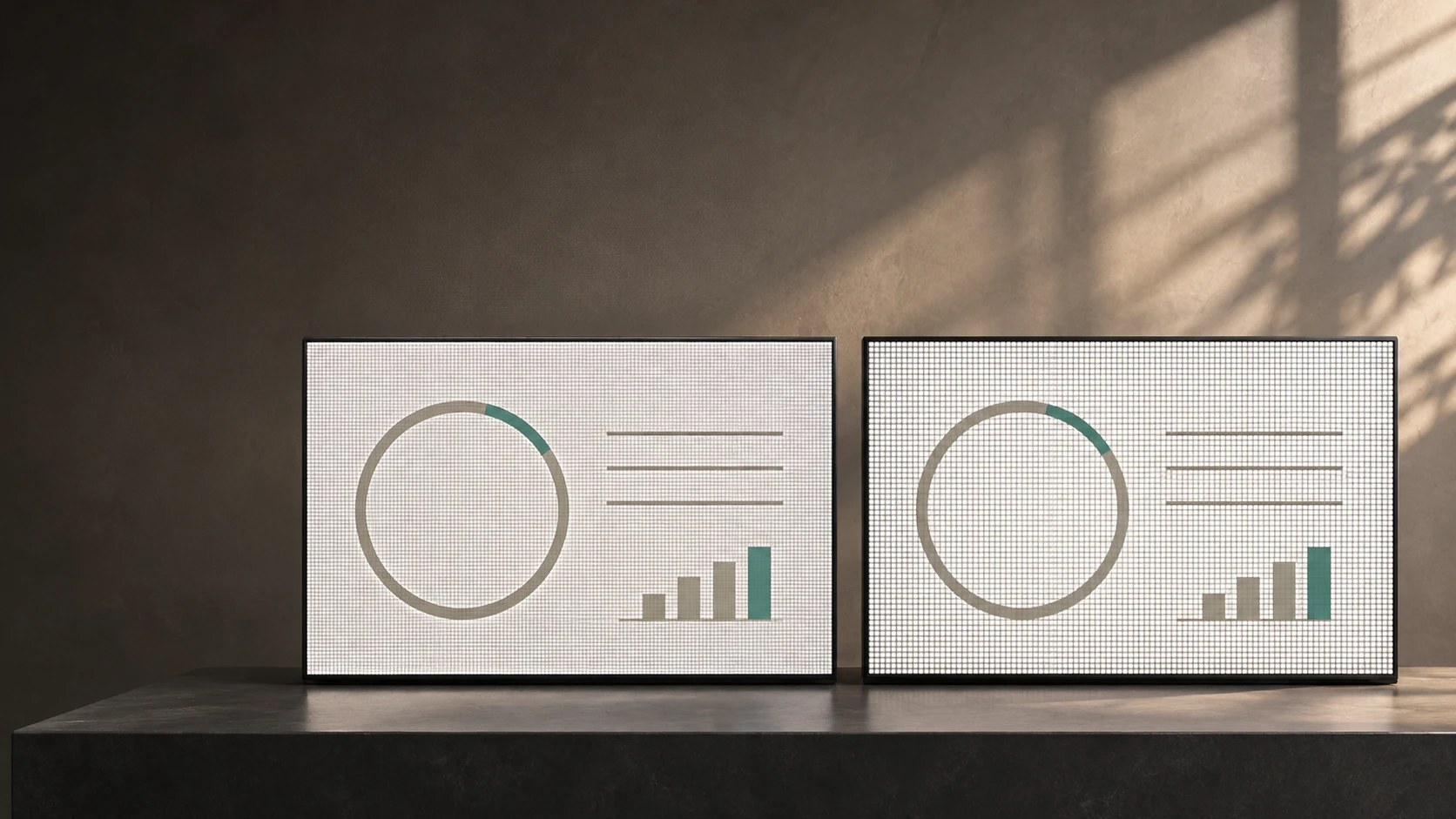
A P2.6 vs P3.91 LED wall comparison starts with the content your audience needs to see. Check the wall dimensions, the actual presentation or video, and the viewing positions that matter.
Consider P2.6 when essential detail is lost on the P3.91 canvas and you cannot make an acceptable change to the content or screen size. Keep P3.91 on the shortlist when it already delivers the required information from the intended viewing positions. Test the proposed configuration before treating either choice as settled.
For the WUYESTAGE examples below, P2.6 refers to the supplied P2.604 configuration. P3.9 is a common shortened label for the P3.91 option. Confirm the cabinet dimensions and native pixel matrix on the quotation; similar pitch names do not establish identical hardware or compatibility.
Compare the same wall size and cabinet format
A useful P2.6 vs P3.9 comparison keeps the physical screen size constant. Otherwise, you may be comparing the benefit of a larger wall with the benefit of finer pixel pitch.
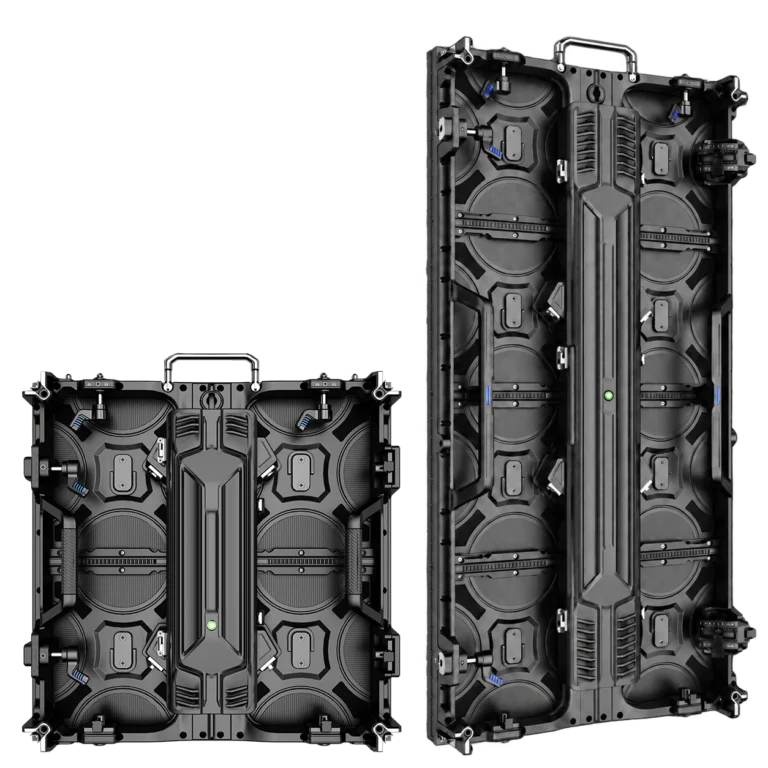
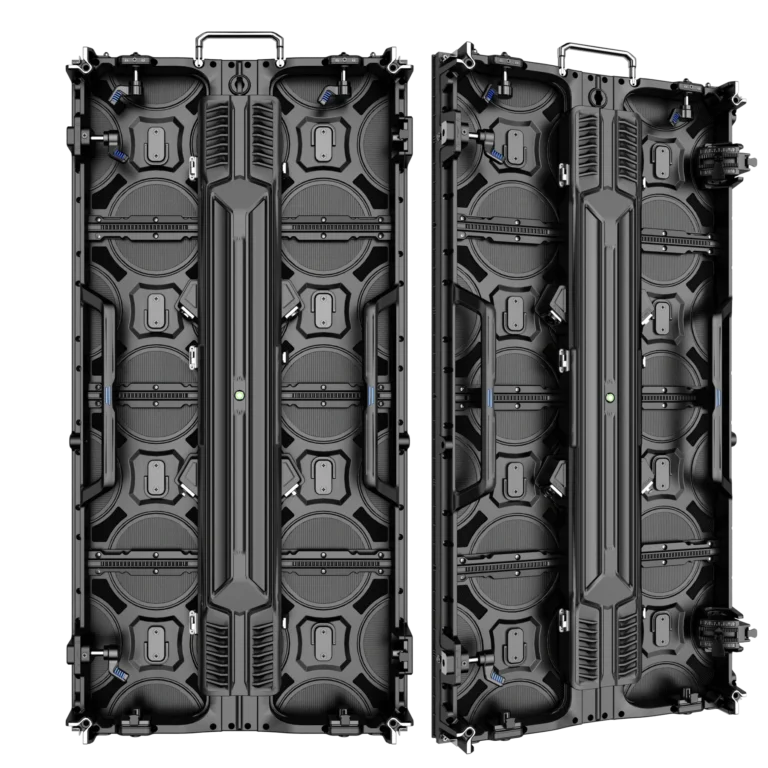
Consider a 4 × 2 m wall built from portrait 500 × 1000 mm cabinets. It uses eight columns and two rows, or 16 cabinets, in either of the following supplied configurations:
| Item | P2.604 | P3.91 |
|---|---|---|
| Cabinet dimensions | 500 × 1000 mm | 500 × 1000 mm |
| Native pixels per cabinet | 192 × 384 | 128 × 256 |
| Layout | 8 columns × 2 rows | 8 columns × 2 rows |
| Cabinet quantity | 16 | 16 |
| Native wall resolution | 1536 × 768 | 1024 × 512 |
| Total pixels | 1,179,648 | 524,288 |
The calculations follow the cabinet matrix:
- P2.604: 8 × 192 = 1536 pixels across; 2 × 384 = 768 pixels high.
- P3.91: 8 × 128 = 1024 pixels across; 2 × 256 = 512 pixels high.
P2.604 provides 1.5 times as many pixels along each axis and 2.25 times as many pixels overall. Both walls occupy the same physical area and use the same number of cabinets in this example. The pixel ratio does not establish a price, power or handling-cost ratio.
For other dimensions, use the LED wall calculator and the selected cabinet’s confirmed matrix. The pixel pitch guide explains how spacing, density and native resolution relate.
Check how your presentation fits the native canvas
Suppose your presentation or playback file is 1920 × 1080, with a 16:9 aspect ratio. The 4 × 2 m wall has a 2:1 aspect ratio. Neither native canvas in the table can reproduce every source pixel one-to-one.
If you fit the complete source into the wall without cropping, the wall’s pixel height limits the image size. Our numerical examples use these integer image areas:
| Fit a 1920 × 1080 source without cropping | P2.604 canvas | P3.91 canvas |
|---|---|---|
| Native wall canvas | 1536 × 768 | 1024 × 512 |
| Fitted image area | 1365 × 768 | 910 × 512 |
| Unused pixels at left / right | 85 / 86 | 57 / 57 |
These examples round the fitted width down to a whole pixel. Your processor’s mapping and rounding need to match the agreed content layout. If the client requires a full-width image, agree whether to crop the source or redesign the content for the 2:1 canvas. The LED screen aspect ratio guide explains those choices.
The difference becomes useful when you follow one small feature through the scaling. A 24-pixel-high bar in the 1080-pixel-high source maps ideally to:
- P2.604: 24 × 768 ÷ 1080 ≈ 17.1 pixels high.
- P3.91: 24 × 512 ÷ 1080 ≈ 11.4 pixels high.
This is a calculation for a defined graphic feature. It does not mean that a 24-point font becomes a particular readable text size. Character shape, stroke width, contrast and viewing position still affect the result.
Use the content check files with your own material
The reference file contains text at labelled source-pixel font sizes, fine lines and the defined 24-pixel-high bar. Two numerical previews show how that same source fits the native canvases above.
The package includes a 1920 × 1080 source, a 1536 × 768 P2.604 preview, a 1024 × 512 P3.91 preview and a short selection record. Extract the ZIP to use the images at their supplied pixel dimensions.
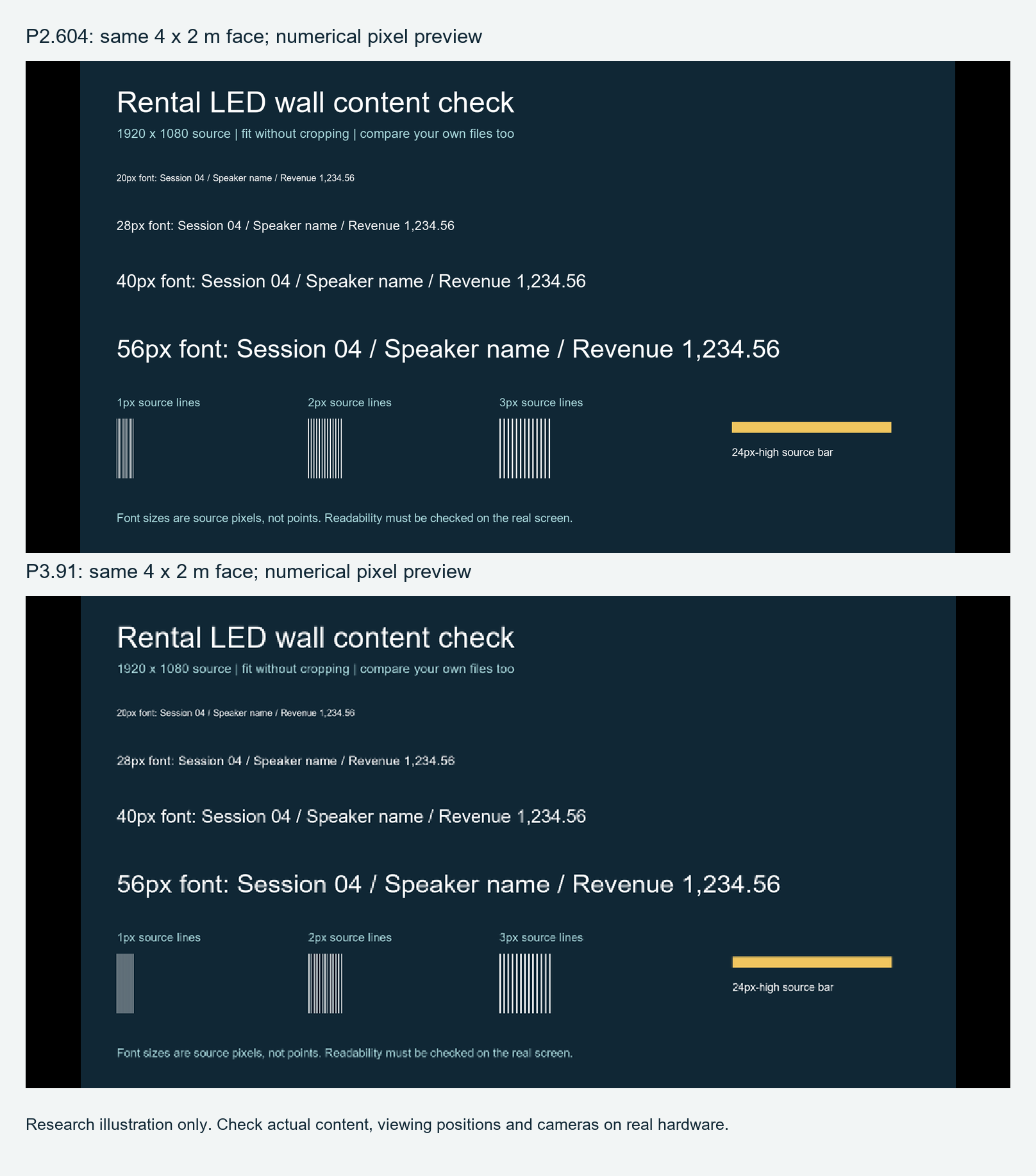
Use the files to understand the sampling difference, then repeat the exercise with representative material from the event:
- Choose the detail that must work. Use a speaker name, table entry, subtitle, software label or logo feature that carries essential information.
- Keep the source and fit policy consistent. Compare the same file version on both native canvases. A cropped image and a fitted image can give different results even before you change pitch.
- Inspect what scaling changes. Look for thin strokes merging, fine lines disappearing or crowded text losing separation. A laptop preview helps identify content to investigate; it cannot approve the viewing experience in the venue.
- Check the candidate screen from the required positions. Include the nearest important viewer and the positions from which essential information must be understood. Record the operating conditions and assess any camera requirements separately.
Copy this short record into the project brief:
| Record | What to enter |
|---|---|
| Content version | File name, source dimensions and fit / crop policy |
| Essential detail | The smallest information the audience must understand |
| Viewing positions | The relevant audience positions and distances |
| P3.91 observation | What works, what fails and under which conditions |
| Content adjustment | What can be enlarged, simplified or rearranged |
| P2.6 observation | Whether the extra pixels resolve the remaining requirement |
| Camera result | Separate recorded-image observations, if required |
Decide whether to change the content or the pitch
If a slide is crowded, try a content change before assuming that the panel needs replacing. Larger text, stronger strokes, a simpler chart or a table split across two slides may make the required information work on P3.91. A native 2:1 layout can also use the full width of this particular wall. Check the revised material from the required positions before accepting the result.
P2.6 deserves a closer comparison when the content is fixed and critical details remain poorly represented on the P3.91 canvas. Examples include a live software demonstration or a client-supplied graphic whose layout cannot be changed. The additional native pixels give those details more sampling positions; the actual content and viewing checks determine whether that is enough.
If neither candidate meets the requirement, revisit the wall dimensions, content layout or available configurations. Buying the finer of two options does not settle a requirement that both still fail.
For rental inventory, apply this check to representative jobs you expect to serve. Record which content and viewing conditions each candidate can handle. That gives you a more useful purchasing basis than a single pitch label or distance rule.
Check cameras and the environmental configuration separately
Finer pitch alone cannot guarantee a clean recorded image. Camera, lens, framing, focus and shooting position interact with the screen. Test the required shots with the intended system; the LED wall moiré guide covers that separate task.
P2.604 and P3.91 are available in WUYESTAGE’s indoor and outdoor rental series. Select the environmental configuration for the actual exposure and brightness requirements. A pitch number or shared cabinet size does not establish weather protection, cabinet weight or compatibility.
The native pixel count also forms part of the control-system brief. Supply the full canvas, required inputs, operating mode and any backup requirements so the processor and receiving configuration can be checked. A total pixel figure alone does not approve the complete signal layout.
Frequently asked questions
Does a 4 × 2 m P2.6 wall reproduce 1920 × 1080 one-to-one?
No. The sixteen-cabinet P2.604 example has 1536 × 768 native pixels. The source must be scaled, and a complete 16:9 image leaves unused space on the sides of the 2:1 wall.
Does P2.6 require more cabinets at the same wall dimensions?
In the example above, both pitches use sixteen 500 × 1000 mm cabinets. Each P2.604 cabinet contains more pixels. Confirm the actual cabinet format when comparing another pair of products.
Can a viewing-distance chart approve small presentation text?
A distance chart provides a starting reference. Readability also depends on the content after scaling, the screen dimensions and the viewing conditions. Check the actual material from the positions where it must be understood.
Choose a rental configuration for your event
Use the indoor rental LED display cabinet series for an indoor project, or compare the outdoor rental LED display cabinet series against the site’s exposure and operating requirements.
Send WUYESTAGE your target wall dimensions, environment, representative content, nearest important viewing position and any camera requirements. Include the content selection record if you have completed it. These inputs let us discuss the appropriate pitch and cabinet configuration for your quotation.