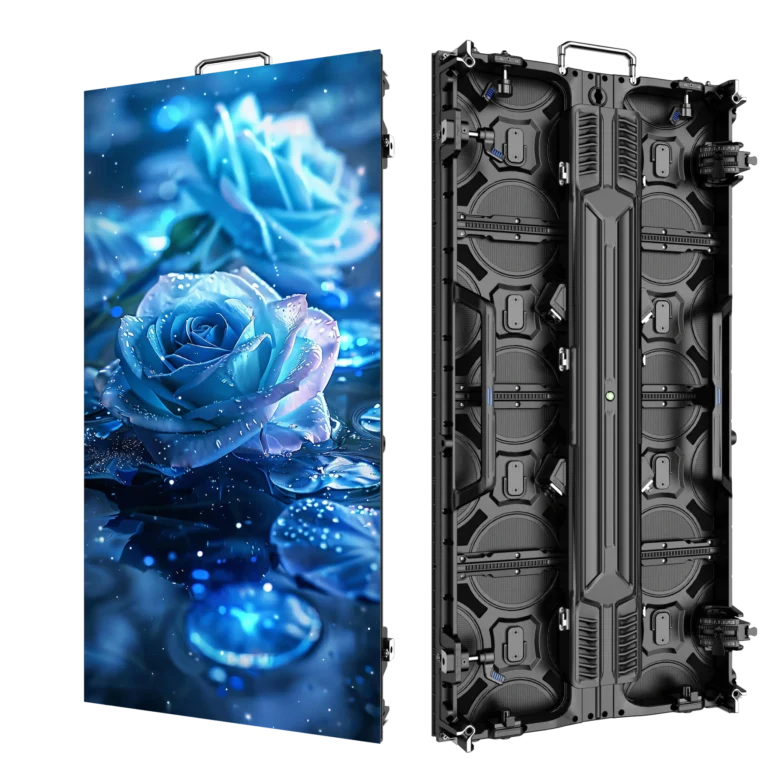
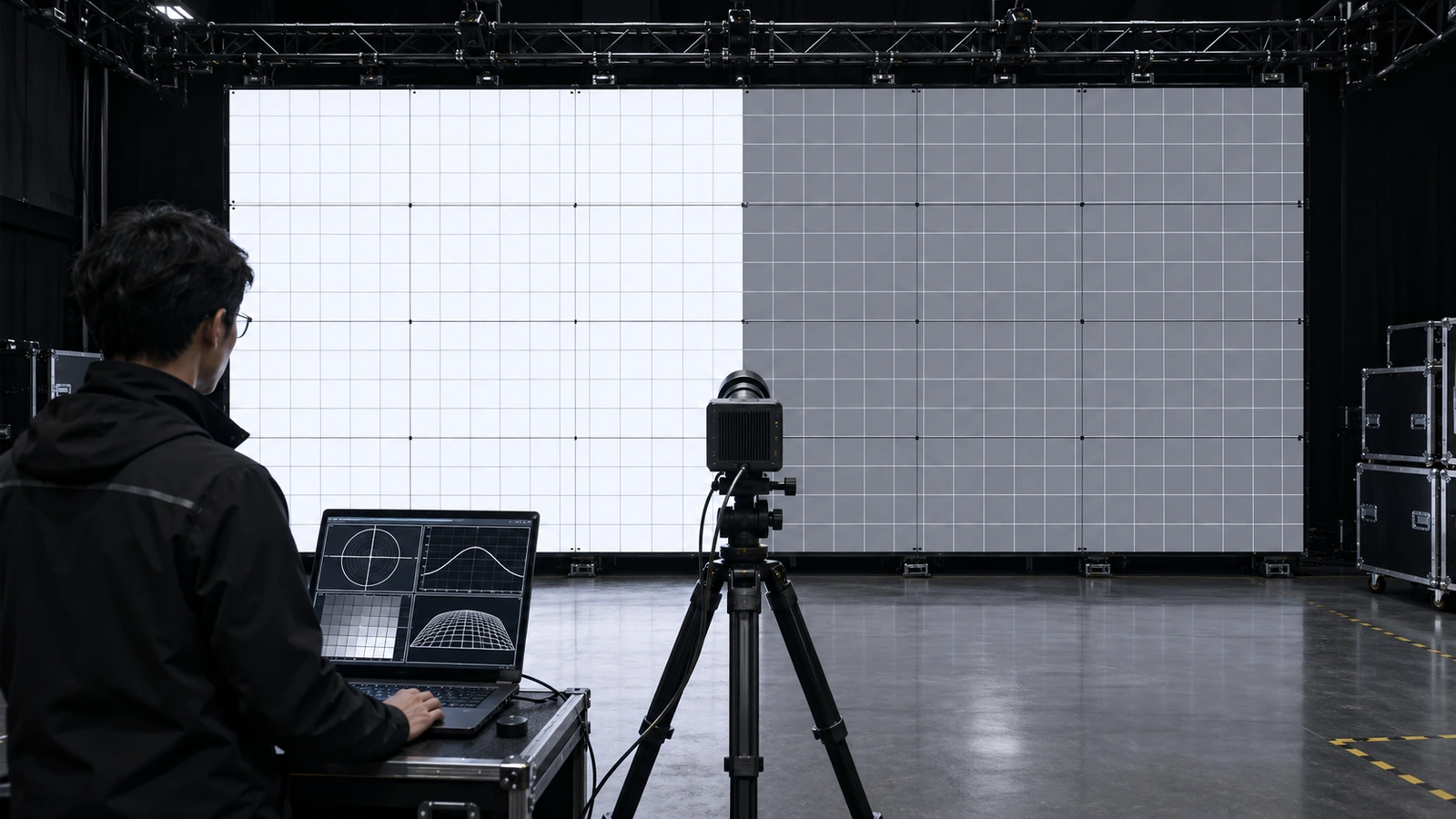
In commercial AV and live event production, LED screen calibration (also called LED display calibration or LED wall calibration) is the pixel-level optical measurement and correction process that equalizes brightness and color coordinates across every individual SMD or COB LED on a modular LED video wall. Unlike Windows desktop monitor color profiling, modular LED wall calibration stores mathematical correction matrices—known as LED calibration coefficients—directly inside each cabinet’s receiving card and module flash memory so that hundreds of independently manufactured LED tiles blend into one seamless, uniform canvas without checkerboard patches, bright spare modules, or tinted seams.
Every rental production company encounters calibration issues the first time they swap a damaged 250×250 mm LED module from spare stock or merge two different production orders of P3.91 cabinets into one large festival backdrop. Even when two modules share the exact same pixel pitch, driver IC, and cabinet frame, tiny nanometer shifts in LED binning and cumulative operating hours make the replacement tile pop out like a bright white square on camera.
This practical engineering guide explains how to calibrate LED screen systems across factory optical calibration versus on-site NovaLCT calibration, gives you an interactive LED Wall Color & Batch-Mismatch Diagnostic Workflow that exports a 1600×900 Calibration SOP Card PNG, walks through exact NovaLCT coefficient backup, upload, and manual RGB/HSB adjustment steps, and ties directly into our NovaLCT Setup Guide, LED Display Spare Parts Guide, and LED Screen Problems Guide.
1. Interactive Tool: LED Wall Color & Batch-Mismatch Diagnostic Workflow
Not every mismatched LED tile requires a full optical camera recalibration—sometimes the fix takes 90 seconds in NovaLCT by reading back factory coefficients from module flash or toggling a single checkbox. Select your exact symptom, hardware history, and available equipment below to generate the correct step-by-step fix—then export a 1600×900 Calibration SOP Card PNG for your shop bench or show-site kit.
LED Wall Color & Batch-Mismatch Diagnostic Workflow
Diagnose bright spare modules, mixed rental batches, dark seam lines, and camera color tint to get the exact NovaLCT workflow.
2. Brightness Calibration vs. Chroma Calibration: What Actually Changes?
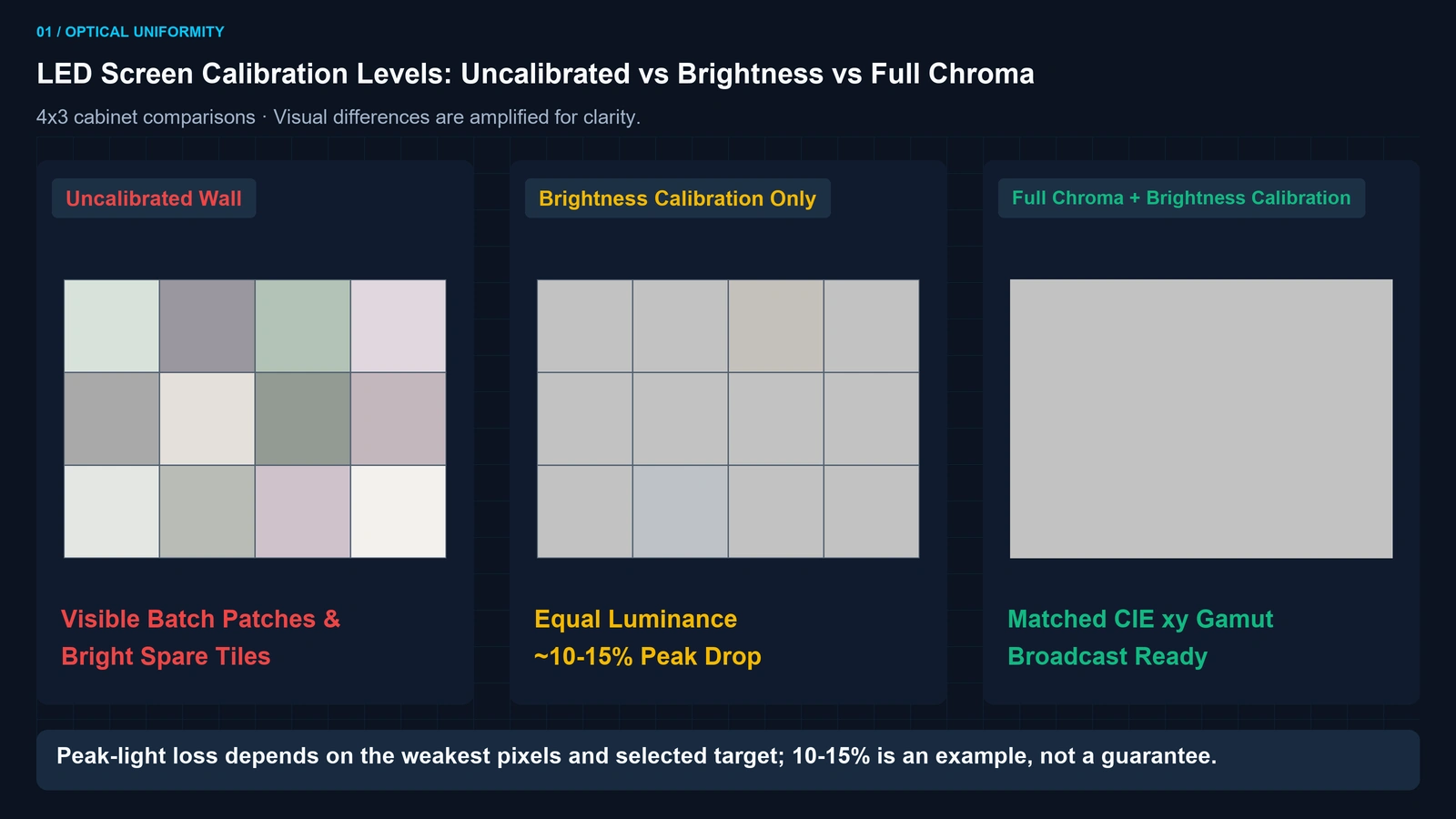
When rental buyers ask about LED screen color calibration and full LED video wall calibration versus standard brightness calibration, the distinction determines both image quality and peak screen brightness for LED wall uniformity:
| Calibration Type | What It Adjusts | Visual Result | Brightness Trade-Off | Best Use Case |
|---|---|---|---|---|
| Brightness Calibration (Single-Factor) | Luminance level (Y) of each R, G, B LED independently | Eliminates bright/dark checkerboard tiles and uneven aging | Moderate (~10%–15% headroom drop to match dimmest LED) | Outdoor rental signs, concerts, budget uniform walls |
| Chroma Calibration (Full Color Gamut / 3×3 Matrix) | Both luminance AND CIE xy color coordinates of every pixel | Eliminates green/pink/warm color shifts across batches; broadcast-grade white balance | Slightly higher (~15%–25% headroom drop to pull all LEDs into common gamut) | Broadcast studios, churches, corporate IMAG, mixed rental batches |
| Full-Grayscale Calibration | Multiple luminance points across low (5%–30%) and high brightness | Eliminates muddy low-gray banding and dark-scene color tints | Minimal extra loss beyond chroma calibration | Virtual production, theaters, low-brightness indoor walls |
3. Step-by-Step NovaLCT Calibration Coefficient Workflow (Backup, Upload & Adjust)
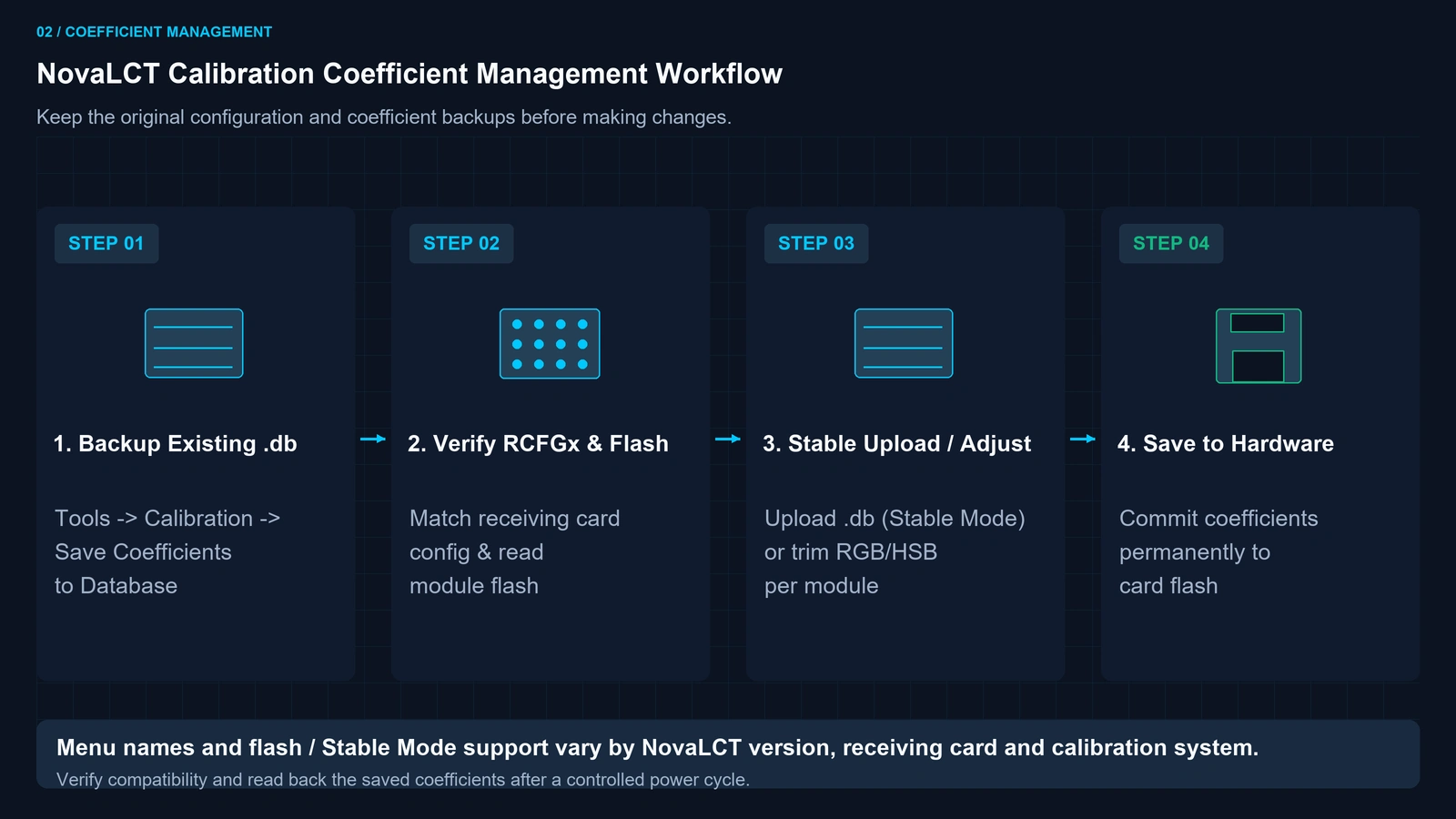
Following NovaStar’s official NovaLCT calibration management architecture, technicians should follow four disciplined phases whenever commissioning a new rental wall or servicing a damaged module:
Phase 1: Unlock Advanced User Mode & Back Up Coefficients First
Never touch calibration settings on a working LED wall until you pull a clean backup.
- Launch NovaLCT, connect to your VX400/VX600/VX1000 or sending box, and open User > Advanced Synchronous System User Login (default password: admin).
- Navigate to Tools > Calibration > Manage Coefficients.
- Select Save calibration coefficients to database, choose the full screen scope, and archive the .db calibration file alongside your .rcfgx receiving-card file on a labeled USB drive and cloud backup.
Phase 2: Restoring Uniformity After Swapping a Module or Receiving Card
When a single module or receiving card is replaced on site, LED module brightness mismatch happens immediately if the new hardware lacks the screen’s calibration matrix.
- Open Tools > Calibration > Manage Coefficients.
- If your cabinets support module flash memory, read back the stored coefficients directly from the replacement module into the receiving card.
- If pushing from your PC backup, select Upload coefficients (choose Pixel-level calibration database, Dark or bright line database, or Full-Grayscale database as appropriate), browse to your archived .db, select Stable Uploading (packet-verified for large screens), target the replaced cabinet, and click Save to write the data permanently into flash memory.
Phase 3: On-Site Manual RGB & HSB Adjustment for Quick Show-Day Blending
When a rental wall has one slightly off-tint replacement tile five minutes before doors open and no optical camera is on site:
- Display a flat 50% gray test pattern so brightness and hue differences stand out immediately.
- Go to Tools > Calibration > Adjust Coefficients, double-click the exact module rectangle (for example, a 64×64 px P3.91 module or 96×96 px P2.604 module), and select Brightness or Chroma.
- Trim RGB gain sliders (or HSB Hue/Saturation/Intensity sliders for subtle color casts) in tiny increments until the module disappears into the wall, then click Save.
4. Why Rental Fleets Must Enforce Batch Management Alongside Calibration
Calibration is powerful for LED panel color matching, but it is not magic—you cannot make a heavily worn 2021 cabinet match a brand-new 2026 LED batch at 100% outdoor sunlight without dragging the new panels down to the older panels’ maximum brightness. Smart rental companies follow three procurement rules covered in our LED Display Spare Parts Guide:
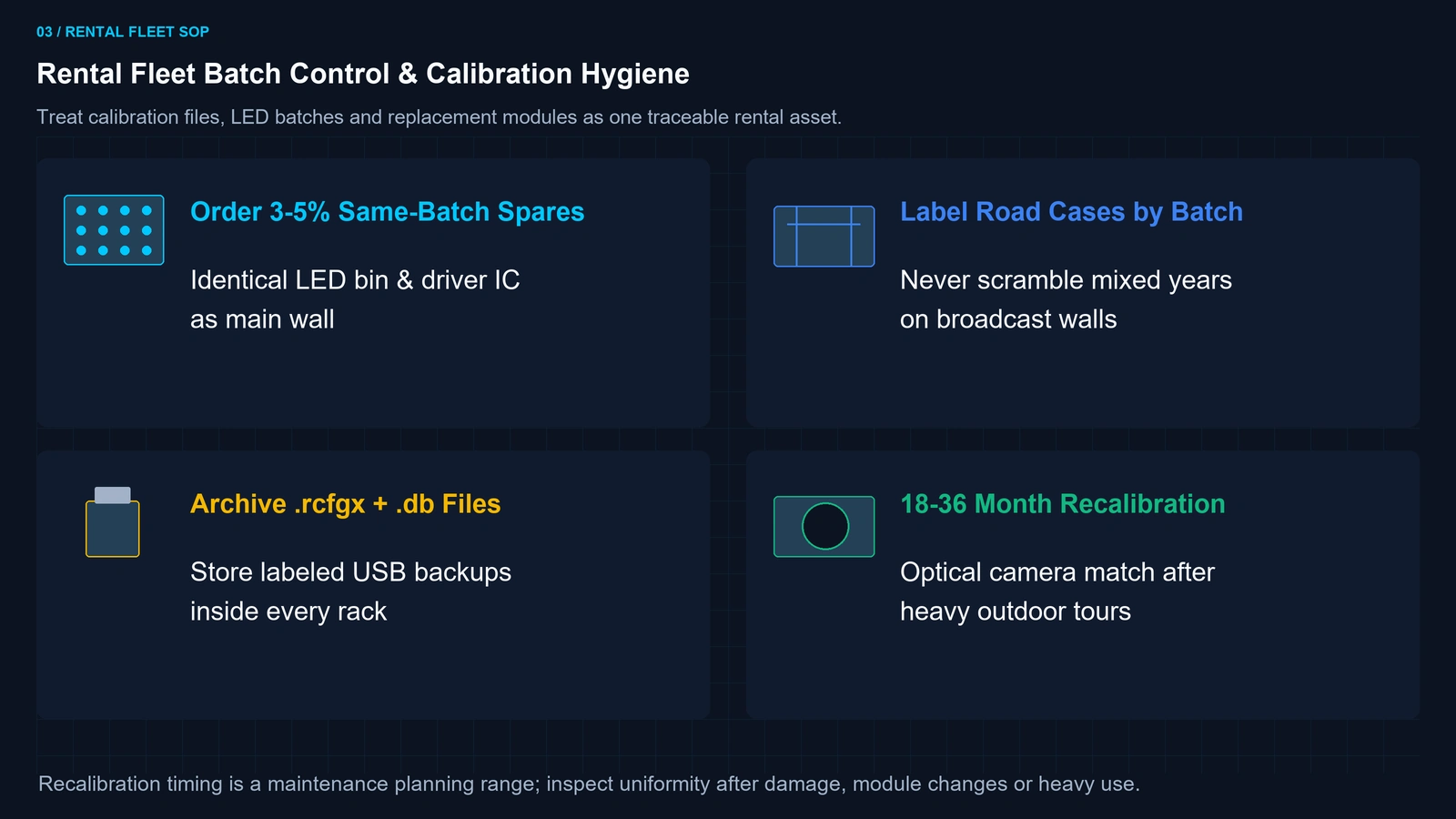
- Order Same-Batch Spares Upfront (3%–5%): Always order spare 250×250 mm LED modules, power supplies, and receiving cards from the exact same LED bin and production batch as your main P3.91 or P2.604 order.
- Label Flight Cases by Production Batch & Calibration Archive: Tag every 6-in-1 (500×1000 mm) or 8-in-1 (500×500 mm) road case with its batch code so crews never accidentally scramble two uncalibrated batches on a flagship corporate wall.
- Verify Hardware Before Blaming Calibration: If an entire 500×1000 mm cabinet shows wrong colors, missing red/green channels, or inverted brightness, troubleshoot ribbon cables, receiving card seating, and power supply voltage (5V DC) first using our LED Screen Problems Guide.
5. Factory Optical Calibration vs. On-Site Field Calibration
| Dimension | Factory Optical Calibration (Before Shipment) | On-Site Field Calibration (After Years / Mixed Batches) |
|---|---|---|
| Environment | Darkroom test bay, controlled temperature, zero ambient sunlight | Venue or dark warehouse at night (strictly zero shifting sunlight!) |
| Equipment | Industrial scientific CCD/CMOS colorimeter camera + NovaCLB suite | Portable calibration camera kit + tripod + NovaLCT/NovaCLB PC |
| Best Timing | Mandatory before every new cabinet order leaves the factory | Every 18–36 months of heavy outdoor use, or when merging batches |
| Resulting Uniformity | Tight pixel-to-pixel brightness & chroma uniformity straight out of the road case | Re-matches aged cabinets and removes multi-batch patches across the full wall |
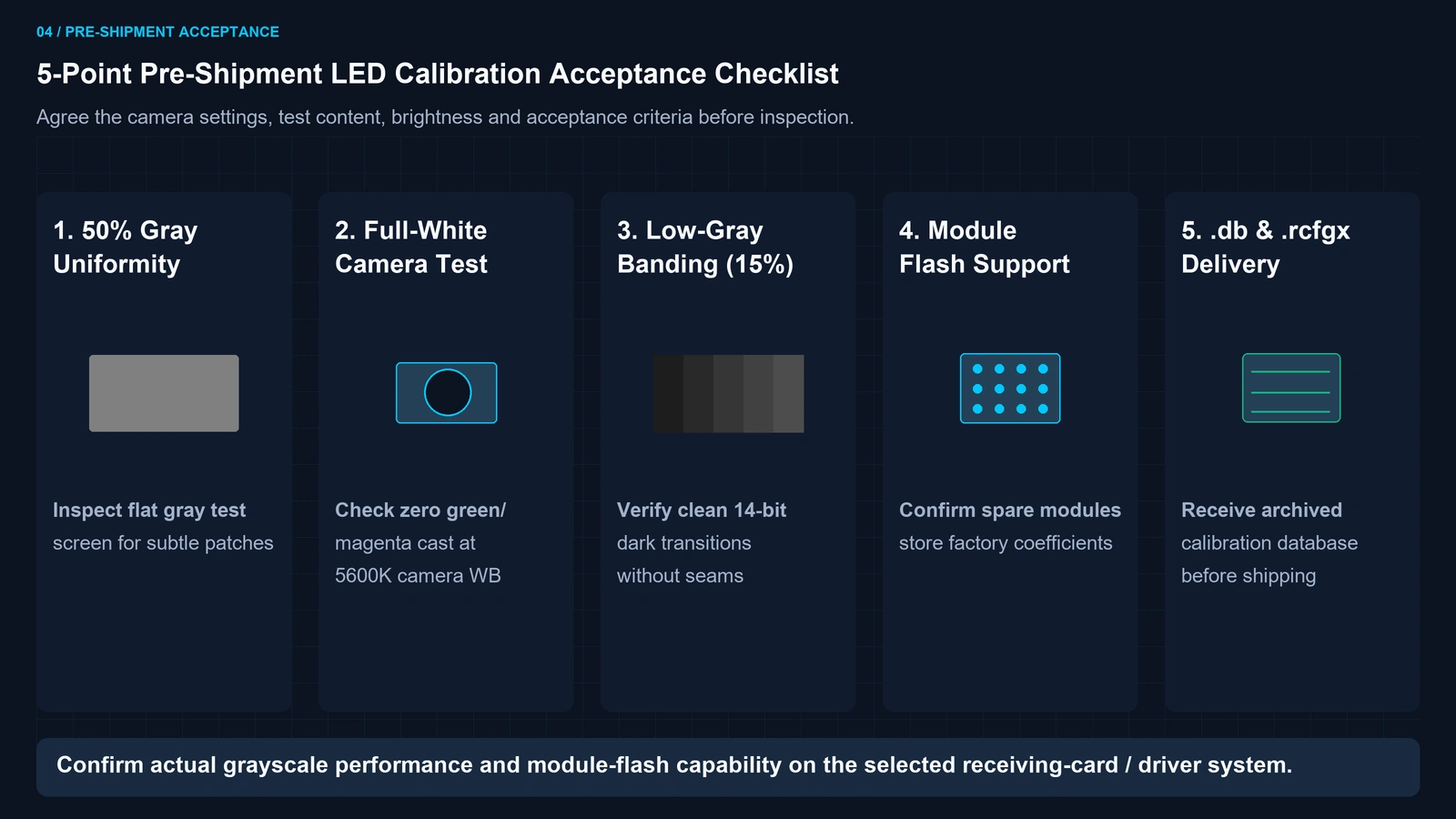
6. Real Factory Aging & Camera Uniformity Verification Before Shipment
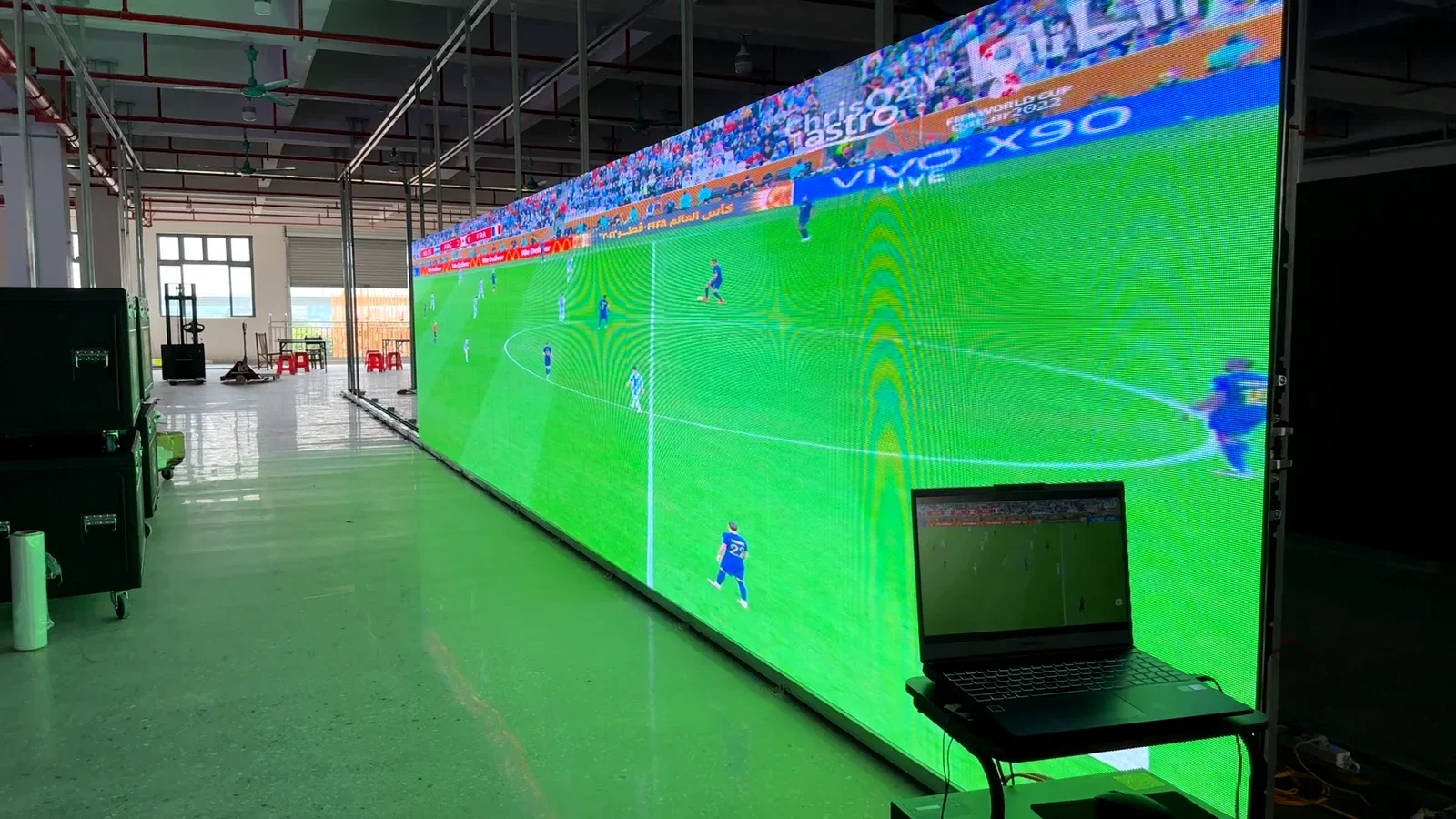
Unlike desktop computer monitors tuned with consumer USB colorimeters and OS ICC profiles, modular stage LED video walls require factory-level optical calibration coefficients stored directly in receiving cards and module flash memory. Before approving container shipment, always inspect pre-shipment aging and camera-test evidence across 50% gray, 5600K white, and 15% low-gray dimming so mismatched module batches never reach your rental warehouse.
7. Frequently Asked Questions: LED Screen Calibration
What is LED screen calibration and why is it necessary?
LED screen calibration measures the exact brightness and color output of every individual LED pixel on a modular video wall and writes correction coefficients to each cabinet’s receiving card. Without calibration, minor manufacturing variations between LED diodes and aging differences create visible checkerboard patches and uneven white balance.
Why does my replacement LED module look brighter than the rest of the wall?
A spare module usually appears brighter because it has fewer operating hours than the older wall or because the cabinet’s receiving card has not loaded matching calibration coefficients for that module. Reading back module flash coefficients or running NovaLCT Adjust Coefficients fixes the mismatch.
What is the difference between brightness calibration and chroma calibration?
Brightness calibration equalizes luminance levels across pixels, while chroma calibration equalizes both brightness and CIE xy color coordinates so reds, greens, blues, and white balance match identically across every tile—especially critical on broadcast cameras and mixed rental batches.
How do I back up LED calibration coefficients in NovaLCT?
Log into NovaLCT Advanced User mode (default password: admin), open Tools > Calibration > Manage Coefficients, select Save calibration coefficients to database, and export the .db file to your PC and backup USB drive before making any hardware or firmware changes.
Does LED screen calibration reduce maximum screen brightness?
Yes, slightly. Because calibration equalizes all LEDs down toward a common uniform target rather than overdriving dimmer diodes, expect roughly 10 to 15 percent peak brightness reduction for brightness calibration and 15 to 25 percent for full chroma calibration.
Can calibration fix mixed LED cabinet batches from different years?
Full optical chroma and brightness calibration can closely match different batches on one wall, provided you calibrate down to the brightness and color gamut of the dimmer batch and use identical receiving-card firmware and .rcfgx profiles. Keeping same-batch spares still gives the cleanest results.
Why do bright or dark seam lines appear between LED cabinets?
Seam lines come from either slight mechanical cabinet misalignment (gaps over 0.3 mm) or edge-row luminance differences. Always check cabinet fast-locks and Row 1 leveling mechanically first, then apply NovaLCT Dark/Bright Line seam correction.
How often should rental LED displays be recalibrated?
Every new LED wall should receive full factory calibration before shipment. Under normal touring schedules, rental fleets typically recalibrate every 18 to 36 months—or whenever merging newly purchased expansion cabinets with an older fleet.
8. Ordering Factory-Calibrated Rental LED Displays with Same-Batch Spares?
Every P3.91, P2.976, and P2.604 outdoor and indoor rental LED display order from WUYESTAGE undergoes aging verification, uniformity inspection, and .rcfgx / calibration archive preparation before export packing—paired with matching same-batch spare modules so field replacements blend cleanly.
Send your target screen size, pixel pitch, indoor/outdoor usage, and spare-part ratio via our Contact Page, or explore our Rental LED Displays, P3.91 500×1000 Outdoor LED Display, and NovaLCT Setup Guide.