Cover image: an illustrative theatre scene, not a customer installation or a demonstration of fade performance.
LED stage light dimming should be checked with the cues your production will actually use, especially the transition out of blackout and the final part of a fade back to black. A “0–100%” range or a bit-depth label is not a sample acceptance result. Confirm the fixture mode and controller profile, test both directions, then check the intended camera workflow separately.
For a theatre scene, a spoken worship segment or a rental production, ask whether the supplied configuration produces an acceptable transition at your required settings, timing and viewing conditions—not simply whether it dims.
LED stage light dimming: separate commands and results
Record what the controller sends, how the fixture is configured, and what the light actually does. Cue duration and any console curve describe the intended transition. The fixture mode and matching profile determine which attributes receive those commands. Supported fixture settings and its response affect the observed result.
Begin with one identified sample and a simple cue. Confirm the mode against the exact channel chart rather than selecting the highest channel count and assuming finer dimming. Keep strobe, automatic programs and unrelated effects out of this baseline check. Use the DMX channel guide if the chart, profile or footprint is unclear.
Do not assume a DMX-controlled LED fixture should be powered through an external dimmer. Follow its exact electrical requirements. These checks concern documented light-output controls, not mains-wiring alterations.
Does 16-bit control guarantee smooth LED fades?
No. First establish which attribute the specification describes. A fixture may document sixteen-bit pan and tilt without documenting sixteen-bit intensity. The moving-head position guide addresses movement, not proof of dimmer performance.
An attribute represented by eight bits has 256 numerical codes; sixteen bits provides 65,536. These are command values, not measured brightness steps or a minimum usable output. The selected mode, profile and observed response still need checking.
A console level of 1% is also not evidence of 1% measured light output. Record it as a command level. For a measured minimum-output requirement, agree on the measurement method and conditions separately.
Run fade-in and fade-out as separate checks
Choose a low scene level, white or color setting, and cue duration that matter to the production. Record them before the first run. Keep the target surface, position and ambient light consistent when comparing samples.
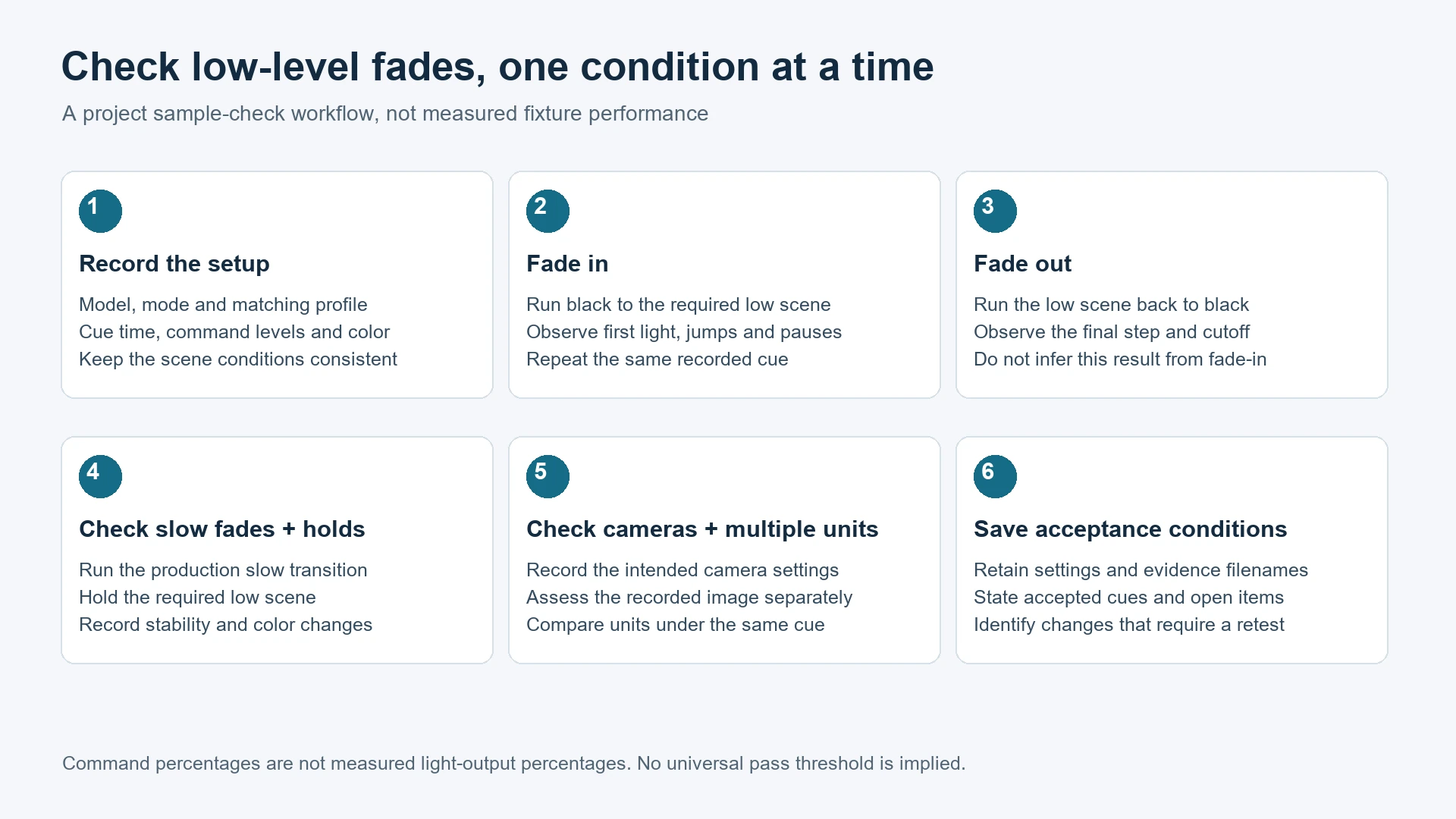
| Check | What to run | What to record |
|---|---|---|
| Black to low | Zero to the required low scene level over the intended time | First visible light, jumps or pauses, and arrival at the required scene |
| Low to black | The low scene level back to zero | Final visible step, abrupt cutoff, delay or residual light after the cue |
| Slow transition | The planned slow change between two scene levels | Visible stepping, uneven progression or unwanted color change |
| Low hold | Hold the required low scene | Stability by eye and through the camera, recorded separately |
| Multiple units | Repeat the accepted cue on the proposed group | Visible differences that affect the combined scene |
For example, a team could compare commands of 0→5% and 5%→0 over ten seconds if that matches a proposed scene. These are illustrative inputs, not universal settings, measured product results or pass limits. Substitute the levels and duration your production needs.
A satisfactory fade-in does not establish satisfactory fade-out. Repeat the cue before approval and record any changes in operating conditions. A repeatable result with an identified configuration is more useful than a single unrecorded demonstration.
Check cameras independently of visual smoothness
A fade can look acceptable to an observer but produce an unacceptable recording. The U.S. Department of Energy's flicker research explains that light-output modulation depends on driver and dimming conditions, and that a visual-response metric does not predict every camera response.
Run the same cues through the intended camera workflow. Record camera and lens, frame rate, shutter, exposure, white balance and picture profile. Identify and hold automatic settings that could change a controlled comparison, then check the production's intended operating setup as well.
Inspect low holds and transitions for banding, brightness instability and unwanted color changes. Record the actual symptom instead of labeling every problem “flicker.” An apparent jump alone does not establish whether the cause is the driver, profile or camera setup.
Keep color rendering separate. A supplied Ra value does not establish low-level fade behavior. Use the CRI camera-check guide for white-light color and sample-comparison questions.
If a cue fails, change one variable at a time
First check agreement between the physical mode, channel chart and console profile. Review cue timing and console curve, then the fixture's documented dimming settings. Do not infer a setting's function from its name alone.
Repeat the same cue after each permitted change. Where the controller provides a documented diagnostic method, compare the commands with the intended transition. This narrows the investigation without converting a symptom into an unsupported hardware diagnosis.
Retain before-and-after configurations when a change improves the fade. Recheck the other required cues and camera conditions before approving the new configuration.
Keep a repeatable sample acceptance record
Agree on the required scene and unacceptable artifacts before approval. “Smooth” becomes a more useful requirement when both teams know the viewing position, cue and configuration involved.
| Field | Information to retain |
|---|---|
| Sample | Exact model, unit/sample ID, firmware when available and proposed supply configuration |
| Controls | Controller/software, profile version, fixture mode, channel mapping and documented settings |
| Cue | Start/end command levels, duration, console curve, white/color setting and repeat count |
| Scene | Fixture position, target, viewing position, ambient light and relevant operating conditions |
| Camera | Camera/lens, frame rate, shutter, exposure, white balance, picture profile and automatic settings |
| Results | Fade-in, fade-out, slow transition, low hold and multi-unit observations; visual and camera findings separately |
| Approval | Accepted conditions, unresolved items, approver, evidence filenames and required retest |
Use an outcome such as “accepted for the recorded cue and configuration,” not “flicker-free at all settings.” If a different camera, profile or mode is proposed, identify which checks need repeating.
Send a lighting brief the supplier can evaluate
For fixed white or color wash, compare the LED PAR light range by each model's documented source, optics, controls and environment limits. Inclusion in a category does not mean every model has passed your low-level cue.
For a configuration-specific inquiry, send WUYESTAGE the lighting role, target area and throw distance, white or color needs, controller/profile, start/end levels, fade duration, camera conditions, quantity and destination. Include the acceptance record or unresolved symptom. The proposed configuration then has a defined task to answer, rather than an unqualified request for “smooth dimming.”